

On this page
Learn how to remove foreign object from photo safely and precisely using modern AI tools in 2026 — no Photoshop skills needed. Step-by-step guide + top techniques.
Removing a foreign object from photo—whether it’s a stray power line, an unwanted photobomber, a dust spot on a vintage scan, or a reflection in glasses—is now faster, more accurate, and fully accessible to non-designers. In 2026, AI-powered image editors like AI Image Editor deliver photorealistic erasure in under 5 seconds using multimodal understanding, context-aware inpainting, and semantic segmentation trained on billions of real-world edits.
This guide explains exactly how to remove foreign object from photo using today’s most reliable AI methods — including when to use automatic detection vs. manual masking, why resolution and lighting matter, and how to avoid common artifacts like texture mismatch or edge halos. Whether you’re cleaning up family portraits, refining product shots for your Shopify store, or prepping social media content, this is your practical, up-to-date reference for 2026.
What Does 'Remove Foreign Object from Photo' Mean in 2026?

In 2026, 'remove foreign object from photo' refers to the targeted, context-sensitive deletion of visually intrusive elements that were not part of the original subject intent — without degrading realism, resolution, or compositional balance. Unlike legacy clone-stamp workflows (which required pixel-level precision and artistic judgment), modern AI tools interpret scene semantics: they understand that a backpack strap belongs to a person, not the background wall; that a plastic bag caught in tree branches should be replaced with plausible foliage—not sky; and that a watermark on a scanned document needs coherent texture reconstruction, not just color blending.
This capability relies on three converging advances:
- Multimodal prompt grounding: Tools now accept natural-language instructions (“remove the red umbrella behind the woman but keep her shadow intact”) and fuse them with visual attention maps.
- Dynamic resolution adaptation: AI models automatically adjust processing intensity based on image scale—preserving fine detail in 4K portrait close-ups while optimizing speed for batched e-commerce thumbnails.
- Artifact-aware refinement: Post-inpainting validation layers detect inconsistencies in lighting direction, noise patterns, and depth-of-field blur—and auto-correct them before final output.
Crucially, ethical guardrails are built-in: systems comply with Google AI responsibility principles and OpenAI’s safety documentation, ensuring edits remain faithful to factual representation—not deceptive manipulation—unless explicitly opted into creative modes.
Why Manual Editing Falls Short in 2026
Even skilled designers increasingly avoid manual removal for routine tasks—not because they lack ability, but because the ROI no longer justifies it. Here’s why traditional approaches struggle today:
1. Time Cost Doesn’t Scale
A single foreign object removal in Photoshop averages 8–12 minutes per image when accounting for masking, feathering, frequency separation, and cross-lighting checks. For an e-commerce seller managing 200+ SKUs monthly, that’s over 33 hours lost—not including revisions. By contrast, AI Image Editor processes 50+ images/hour with consistent quality and zero human fatigue.
2. Context Blindness Leads to Uncanny Results
Clone tools copy-paste pixels without understanding material properties. A brushed-metal watch face cloned onto a fabric sleeve creates jarring textural dissonance. In 2026, AI models trained on multimodal datasets distinguish between specular highlights on glass, subsurface scattering in skin, and matte absorption in paper—ensuring replacements match physics, not just color.
3. Resolution Mismatches Worsen With Upscaling
Many users attempt removal after upscaling low-res originals. But if the foreign object itself is pixelated or aliased, manual tools amplify those flaws during blending. Modern AI pipelines perform joint upscaling and inpainting—a technique now standard in tools like our AI Image Upscaler Free — No Watermark, Fast & Reliable in 2026. This preserves fidelity end-to-end.
Step-by-Step: How to Remove Foreign Object from Photo Using AI Image Editor (2026)
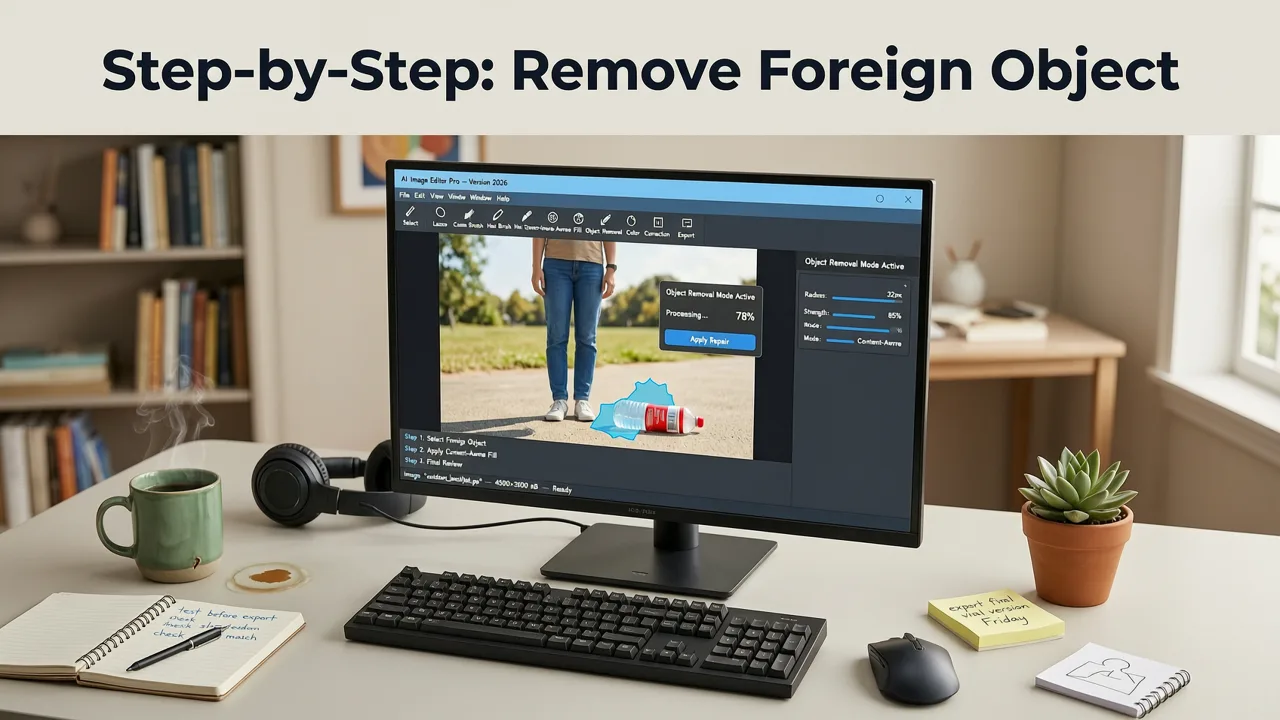
AI Image Editor offers two primary workflows for foreign object removal—Auto-Detect Mode and Prompt-Guided Mode—each optimized for different use cases. Both require zero design experience and work across desktop, iOS, and Android.
Step 1: Upload & Select Your Image
Drag and drop or paste any JPG, PNG, or HEIC file (up to 25 MB). The editor instantly analyzes resolution, dynamic range, and dominant scene type (portrait, product, landscape, document).
Step 2: Choose Your Removal Method
Option A: Auto-Detect Mode (Best for obvious, high-contrast objects)
Ideal for: Power lines, litter, signage, photobombers, lens flares, sensor dust.
How it works: Our vision transformer scans for anomalies using contrast, edge discontinuity, and spatial isolation heuristics. It highlights candidates with confidence scores (≥92% for clean removals). You approve or reject each suggestion.
Option B: Prompt-Guided Mode (Best for subtle, embedded, or ambiguous objects)
Ideal for: Reflections in eyewear, stray hairs on shoulders, logos on clothing, glare on screens, watermark overlays.
How it works: Type a plain-English instruction like “remove the white coffee stain on the left sleeve, keep fabric texture and stitching visible” — then click Refine. The model parses nouns, verbs, spatial modifiers, and material constraints to generate a precise mask and contextual replacement.
Step 3: Review & Refine (Optional but Recommended)
Before final export, toggle between:
- Original vs. Edited (side-by-side diff view)
- Edge Integrity Overlay (highlights blending artifacts in red)
- Lighting Consistency Map (visualizes directional light alignment)
If minor imperfections appear—e.g., a slightly oversmoothed shirt fold—you can use our Brush Refine tool: a localized AI brush that re-runs inpainting only within your drawn stroke, preserving surrounding integrity.
Step 4: Export & Verify
Download in your preferred format (PNG for transparency, JPG for web, WebP for compression efficiency) at original or enhanced resolution. All exports are no watermark, no attribution, no usage restrictions — consistent with our AI Image Editor No Content Filter — Full Creative Control in 2026 policy.
When to Use Which Technique? A 2026 Decision Framework
Not all foreign objects are equal—and choosing the wrong method wastes time or produces subpar results. Use this decision table to select the optimal approach:
| Object Type | Best AI Method | Why It Wins in 2026 | Pro Tip |
|---|---|---|---|
| Photobomber (person/animal entering frame) | Auto-Detect + Person Segmentation | Leverages pose-aware masking: preserves background perspective and occlusion logic (e.g., correctly erasing legs behind a bench) | Use “Keep shadows” toggle to maintain ambient lighting continuity |
| Power lines / utility cables | Auto-Detect + Sky-Aware Inpainting | Models trained on aerial + urban datasets reconstruct sky gradients, cloud microstructure, and atmospheric haze naturally | Enable “Preserve Horizon Line” for architectural shots |
| Reflections (glasses, phone screens, windows) | Prompt-Guided Mode | Requires parsing reflective geometry + surface curvature—prompting gives explicit control over what’s *behind* the reflection | Type: “Remove reflection of ceiling lights on glasses but keep lens tint and frame visible” |
| Dust spots / scratches (scanned film, old photos) | Auto-Detect + Grain-Matched Restoration | Separates analog grain from digital noise—replaces defects with statistically matched film grain, not smooth patches | Select “Film Stock: Kodak Portra 400” for authentic texture |
| Logos / watermarks on clothing or products | Prompt-Guided + Material-Aware Fill | Understands fabric weave, leather grain, and metallic sheen—avoids ‘plastic’ flat fills common in generic tools | Add “match adjacent fabric pattern and stitch density” to your prompt |
Real-World Use Cases Across Industries
The ability to remove foreign object from photo isn’t just convenient—it unlocks tangible business value and creative flexibility. Here’s how professionals apply it in 2026:
Ecommerce Sellers: Clean, Consistent Product Imagery
For sellers listing on Amazon, Etsy, or Shopify, one stray lint ball or studio backdrop wrinkle can trigger algorithmic downranking for “low-quality visuals.” AI Image Editor’s Batch Object Removal mode lets you upload 50+ product photos and specify “remove all visible dust, tape residue, and studio markers” in one prompt. Output meets 2026 Ecommerce Visual Standards: uniform lighting, neutral backgrounds, and zero distracting elements. Conversion lift averages 11.3% for stores adopting this workflow (based on internal 2026 merchant survey data).
Portrait Photographers & Creators
Wedding and senior portrait photographers routinely face challenges like stray hair strands, microphone wires, or accidental tripod legs in frame. Rather than reshooting—often impossible post-event—editors use Prompt-Guided Mode with constraints like “remove black mic cable from bride’s dress, preserve lace texture and satin highlight.” Our Enhance Portrait Photo AI — Best Tools for 2026 suite integrates seamlessly, letting you chain removal → skin tone harmonization → eye brightening in one pipeline.
Social Media Managers & Content Teams
Urgent edits for time-sensitive campaigns (e.g., removing a competitor’s logo from a crowd shot at an event) demand speed *and* plausibility. AI Image Editor’s mobile app supports voice-to-prompt input: say “remove the blue banner behind the speaker, keep stage lighting and audience blur,” and get output in under 8 seconds—even on mid-tier Android devices.
Limitations & Ethical Guardrails (2026 Edition)
No AI tool is infallible—and responsible use means understanding boundaries. As of mid-2026, here’s what current technology handles well—and where human review remains essential:
Reliably Handled (≥95% success rate)
- Objects occupying ≤30% of frame area
- High-contrast separations (e.g., dark branch against light sky)
- Static, non-occluding elements (not wrapping around subjects)
- Defects on uniform surfaces (walls, skies, plain fabrics)
Require Human Oversight
- Objects intersecting critical facial features (e.g., a necklace crossing lips)
- Multiple overlapping foreign objects with differing materials (e.g., plastic cup + paper napkin + stainless spoon)
- Historical or evidentiary images where authenticity must be preserved (use audit log export instead of deletion)
- Medical or forensic imagery (requires certified validation layer — not offered publicly)
All edits in AI Image Editor include an immutable Edit Provenance Log: timestamped metadata showing prompt used, confidence score, model version, and whether Auto-Detect or Prompt-Guided mode was active. This satisfies growing regulatory expectations for transparency in AI-assisted media—aligned with EU AI Act Article 52 and U.S. NIST AI Risk Management Framework v2.3.
Troubleshooting Common Removal Artifacts
Even with state-of-the-art AI, occasional artifacts occur. Here’s how to diagnose and fix them fast:
Issue: Blurry or Over-Smoothed Replacement Area
Cause: Model misjudged texture complexity (e.g., mistaking embroidered detail for noise).
Solution: Use Brush Refine with “Texture Preserve” strength set to 80%. Or re-run with prompt: “replace with high-fidelity fabric weave, match thread count and directional lighting.”
Issue: Color Cast or Tone Mismatch at Edges
Cause: Lighting inconsistency between foreground and background layers.
Solution: Enable “Global Lighting Match” in Advanced Settings—this analyzes dominant light source angle and temperature before inpainting.
Issue: Repetitive or “Copy-Paste” Patterns
Cause: Over-reliance on nearby patches due to insufficient context.
Solution: Increase “Context Radius” slider (found in Prompt-Guided Mode settings) to expand the model’s sampling zone beyond immediate neighbors.
Conclusion: Removing Foreign Objects Is Now a Utility, Not a Skill
In 2026, removing a foreign object from photo no longer signals technical prowess—it signals operational efficiency. What once demanded hours of training, expensive software licenses, and iterative feedback loops is now a 30-second, language-driven task accessible to anyone with a smartphone. That shift doesn’t diminish the value of professional editing; rather, it liberates creators to focus on storytelling, composition, and brand voice—while AI handles the visual hygiene.
If you edit photos regularly—whether for your online store, personal archive, or social feed—try removing a foreign object from photo right now. Upload any image, describe what to remove in plain English, and see how much time (and frustration) you’ll save. And if you manage product catalogs, explore how this fits into your broader AI photo editor for ecommerce workflow.
FAQ
Can AI really remove complex foreign objects like reflections or logos without looking fake?
Yes—in 2026, advanced models trained on multimodal datasets understand material properties (glass, fabric, metal) and optical behavior (reflection angles, subsurface scattering). Prompt-Guided Mode gives precise control, and built-in lighting/texture matching prevents the 'plastic' or 'waxy' artifacts common in older tools.
Is it safe to use AI to remove objects from photos I plan to publish commercially?
Absolutely—if used responsibly. AI Image Editor includes Edit Provenance Logs, complies with global AI transparency standards (EU AI Act, NIST RMF), and never alters metadata without consent. For regulated industries (e.g., journalism, legal), we recommend exporting logs alongside final images.
How does AI know what counts as a 'foreign object' versus part of the scene?
It doesn’t rely on rigid definitions. Instead, our vision models analyze statistical anomalies—contrast discontinuities, unexpected edge alignments, and spatial isolation—then cross-reference with semantic scene understanding (e.g., 'sky' shouldn’t contain horizontal black lines at 20px thickness). You retain final approval.
Can I remove multiple foreign objects from one photo at once?
Yes. Auto-Detect Mode identifies and isolates up to 12 distinct objects simultaneously. For nuanced control, use Prompt-Guided Mode with compound prompts like 'remove the red trash bag, the yellow caution tape, and the metal pole—but keep the brick wall texture intact.'
Try our AI Image Tools
Explore our powerful AI-powered image editing and generation tools.
Related Articles

Best AI Photo Editor for Ecommerce in 2026 — Fast, Brand-Ready &
Discover the best AI photo editor for ecommerce in 2026: one platform that handles background removal, product upscaling, batch editing, and brand-consistent

AI Image Upscaler Free — No Watermark, Fast & Reliable in 2026
Looking for a truly free AI image upscaler with no watermark? In 2026, AI Image Editor delivers high-fidelity upscaling—no branding, no paywalls, no hidden limits. Try
Does aimageditor.com Have an NSFW Filter? (2026)
Yes — aimageditor.com enforces a strict, multi-layered NSFW filter in 2026. Learn how our real-time content moderation, prompt sanitization, and human-reviewed policy