Remove Background and Replace with AI: Fast, Clean Edits in 2026
If you need to remove background and replace with AI in seconds, the fastest path in 2026 is a single prompt. Upload your image, describe the new scene you want, and let a modern AI editor handle the masking, lighting, and shadow work automatically. AI Image Editor does exactly this with over 200 text-prompt tools built for creators, ecommerce sellers, and marketers who want polished results without opening Photoshop.
Background replacement has evolved far beyond a simple cutout. Today's AI understands depth, edge detail like hair and fur, and scene lighting so your subject looks like it actually belongs in the new background. This guide walks through how it works, the best workflows for different use cases, and how to get the cleanest results every time.
Why Remove Background and Replace with AI in 2026
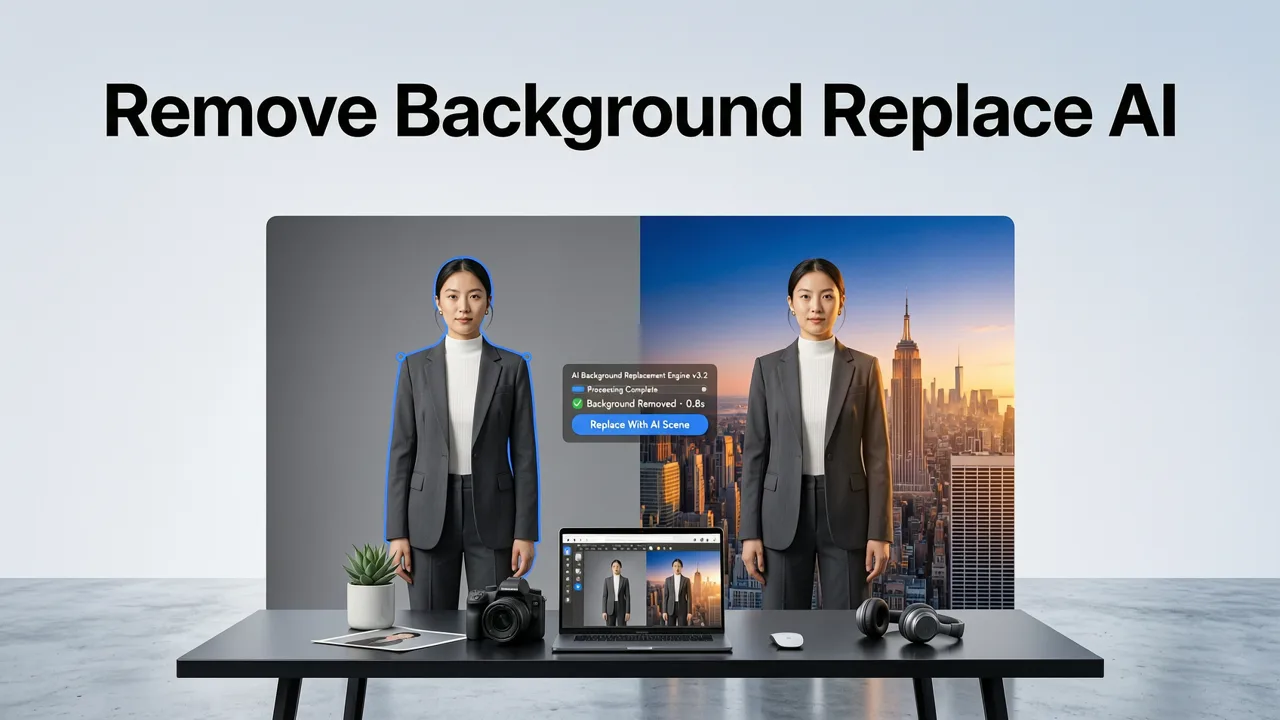
Legacy background removal tools gave you a PNG on a transparent canvas. That was useful in 2020. In 2026, users expect a finished scene — not a floating subject. Whether you are shooting product photos for a Shopify store, creating LinkedIn headshots, or designing social media content, the background is part of the story.
Best AI Background Remover for Videos (2026)
by Thomas Creates
Here is why AI-powered background replacement has become the default workflow:
- Speed: A full background swap takes seconds, not the 10–20 minutes a manual masking job in Photoshop would require.
- Consistency: Batch-process dozens of product images so every listing matches your brand's visual standard.
- Cost: No need to hire a retoucher or rent a studio. One subscription replaces multiple tools and freelancers.
- Creativity: Describe any scene — a marble countertop, a tropical beach, a minimalist studio — and the AI generates it around your subject.
The shift is simple: you are no longer just removing a background. You are compositing a complete image with a single instruction.
How AI Background Replacement Works Under the Hood

Modern background replacement is not a two-step cutout-and-paste process. It is a unified pipeline that handles segmentation, inpainting, relighting, and blending in one pass. Here is what happens when you ask an AI editor to remove background and replace with AI.
Step 1: Semantic Segmentation
The AI identifies every object in the frame — your subject, foreground elements, background layers, and even subtle transitions like wisps of hair or translucent fabric. In 2026, segmentation models use multi-scale attention maps, which means they handle tricky edges far better than earlier tools that left halos or clipped fingers.
Step 2: Scene Generation from Your Prompt
Once the subject is isolated, the AI generates a new background based on your text description. If you type "white marble countertop with soft overhead lighting," the model builds that scene at the correct resolution and perspective. This is where the quality gap between basic tools and advanced platforms like AI Image Editor becomes obvious.
Step 3: Relighting and Shadow Matching
A subject pasted onto a new background looks fake if the lighting does not match. Advanced editors estimate the light direction and color temperature of the generated scene, then adjust the subject's highlights, shadows, and color cast accordingly. A soft drop shadow is added automatically to ground the subject.
Step 4: Edge Refinement and Final Blend
The final pass smooths any remaining edge artifacts, matches grain and noise levels between subject and background, and outputs a single cohesive image. The result looks like it was shot in that environment, not composited after the fact.
Best Use Cases for AI Background Replacement
Background replacement is not just a neat trick. It solves real production problems across multiple industries. Here is where it delivers the most value in 2026.
Ecommerce Product Photography
Consistent, clean product images drive conversions. Sellers use AI background replacement to put every SKU on the same neutral backdrop, or to place products in lifestyle scenes — a candle on a cozy shelf, a skincare bottle next to fresh botanicals. This eliminates the cost of physical flat-lay shoots and keeps listings visually uniform across your catalog.
Portrait and Headshot Editing
Whether you need a professional LinkedIn portrait or a creative social media avatar, swapping the background transforms the tone of the image instantly. A cluttered home office becomes a clean studio setup. A casual park photo becomes a polished corporate headshot. For deeper portrait work, the best AI photo editor for portraits in 2026 goes well beyond background swaps into skin retouching and feature refinement.
Social Media and Marketing Content
Content teams produce dozens of visuals per week. AI background replacement lets you re-theme a single hero image for multiple campaigns — swap a summer beach scene for an autumn forest, or move a product from a kitchen counter to a rooftop bar. The speed makes A/B testing different visual contexts practical for the first time.
Real Estate and Interior Visualization
Agents and designers use background replacement to stage empty rooms, swap outdated wall colors, or place furniture into a vacant space. The AI understands perspective and scale, so the result looks architecturally plausible rather than obviously edited.
How to Remove Background and Replace with AI: A Step-by-Step Workflow
Here is the exact workflow you can follow on AI Image Editor to get clean, natural-looking background replacements every time.
- Upload your image. Use a photo where the subject is reasonably well-lit and not heavily obscured. The AI handles most scenarios, but a cleaner source image always yields a better result.
- Select the background replacement tool. In AI Image Editor, choose from the suite of 200+ prompt-based tools designed for this exact task.
- Write a clear prompt. Be specific. Instead of "nice background," try "modern minimalist kitchen with white cabinets, warm morning light from a window on the left, shallow depth of field." The more precise your description, the better the output.
- Review and refine.If the first result is close but not perfect, adjust your prompt. Shift the lighting direction, change the color palette, or simplify the scene. Most users nail the result in two to three iterations.
- Download in the right format. For ecommerce, export as a high-resolution JPEG or PNG. For social media, match the platform's aspect ratio. If you need to enlarge the final image further, check out the guide on how to upscale a photo without losing quality in 2026.
AI Background Replacement vs. Traditional Methods
Not all background replacement approaches are equal. Here is how AI-powered replacement compares to the older methods still in use.
| Feature | AI Background Replacement (2026) | Manual Photoshop Masking | Basic Auto-Removal Tools |
|---|---|---|---|
| Time per image | 5–15 seconds | 10–25 minutes | 3–8 seconds |
| Edge quality (hair, fur, glass) | Excellent | Excellent (with skill) | Poor to fair |
| Lighting match to new background | Automatic | Manual adjustment required | None |
| Shadow generation | Automatic | Manual painting required | None |
| Batch processing | Yes, with consistent prompts | Very slow | Yes, but low quality |
| Text-prompt scene control | Full natural-language control | Not applicable | Not applicable |
| Learning curve | None | High | Low |
The table makes the tradeoff clear: manual masking offers precision at the cost of time and skill, while basic auto-removal tools sacrifice quality for speed. AI background replacement in 2026 delivers both speed and quality, which is why it has become the standard for production workflows.
Prompting Tips for Better Background Replacements
The quality of your result depends heavily on how well you describe the scene you want. Here are practical prompting strategies that consistently produce better outputs.
Describe the Lighting
Lighting is the single biggest factor in whether a composite looks natural. Include the direction, quality, and color of light in your prompt. "Soft diffused light from the left, slightly warm tone" gives the AI enough information to relight your subject convincingly.
Specify the Camera Perspective
If your original photo was shot from eye level, describe a background at the same angle. "Shot from slightly above, looking down at a wooden desk" prevents perspective mismatches that make the subject look like it was pasted on top of the scene.
Keep the Scene Simple
Overly complex prompts with too many elements often produce muddled results. Start with two or three key details — surface material, lighting, and one accent object — then refine from there.
Match the Mood to Your Brand
A luxury skincare brand needs a different background than a budget marketplace listing. Use prompts that reflect your brand's visual identity: clean whites and soft shadows for premium positioning, bold colors and dynamic angles for lifestyle brands.
Common Mistakes to Avoid
Even with powerful AI tools, a few common errors can degrade your results. Watch out for these.
- Vague prompts: "Cool background" gives the AI almost nothing to work with. Be specific about materials, colors, and lighting.
- Ignoring the original lighting: If your source photo has harsh overhead light but your prompt describes golden-hour sunlight, the relighting engine has to work harder and the result may look inconsistent.
- Over-complex scenes: Asking for a detailed cityscape with rain, neon signs, and crowds in one prompt often produces noisy results. Start simple, then layer complexity.
- Skipping the review step: Always zoom in on edges, especially around hair, translucent objects, or fine details. A quick refinement pass catches issues before you publish.
How AI Image Editor Stands Out for Background Replacement
AI Image Editor was built around the idea that powerful editing should not require design skills. The platform offers over 200 text-prompt tools, and background replacement is one of the most refined in the suite. Here is what sets it apart.
- Purpose-built segmentation: The masking engine is trained on millions of product, portrait, and lifestyle images, so it handles the subjects that matter most to creators and sellers.
- Integrated relighting: No separate step for shadow and light matching — it happens automatically as part of the background generation.
- Batch-ready: Apply the same prompt to an entire product catalog for consistent visual output across hundreds of SKUs.
- No downloads or installs: Everything runs in the browser, which matters for teams that need fast turnaround without software management.
If you are already using AI Image Editor for other tasks like AI skin smoothing online, the background replacement tool fits seamlessly into the same workflow — upload once, edit with multiple tools, and export.
Privacy and Responsible AI Use
When you upload images to any cloud-based editor, data handling matters. AI Image Editor follows responsible AI practices aligned with industry guidance, including the principles outlined in Google's AI responsibility framework. Your images are processed securely, and you retain control over what you publish. For developers building on similar AI pipelines, OpenAI's documentation offers useful reference material on safe deployment patterns.
Frequently Asked Questions
Can I remove background and replace with AI for free?
Many tools offer limited free trials, but high-quality background replacement with relighting and shadow generation typically requires a paid plan. AI Image Editor provides a full suite of 200+ prompt-based tools designed for production use.
Does AI background replacement work on group photos?
Yes. Modern segmentation models can isolate multiple subjects simultaneously. For best results, ensure the group is clearly separated from the background and not overlapping excessively.
How do I handle reflective or transparent objects?
Glass, jewelry, and liquids are the hardest subjects for any background replacement tool. AI Image Editor's segmentation engine is specifically trained on product photography, which includes these challenging materials. For borderline cases, a slightly simplified background prompt produces cleaner edges.
Can I keep the original background and just change the color?
Absolutely. If you do not want a full scene replacement, you can prompt the AI to shift the background color while preserving the existing environment. This is especially useful for brand consistency across product listings.
Start Replacing Backgrounds in Seconds
Removing a background and replacing it with AI is no longer a specialized skill — it is a one-prompt action available to anyone. Whether you are shooting ecommerce product photos, creating social media content, or polishing portraits, AI Image Editor gives you the speed and quality to produce studio-grade results without the studio. Upload your first image, describe the scene you want, and see how fast clean, professional edits can be.