Remove Background and Replace with White — Instantly in 2026

If you have ever needed to remove background and replace with white for a product listing, social post, or headshot, you already know how tedious the process can feel. The good news in 2026 is that AI-powered tools now handle the entire workflow in seconds — no masking, no manual selection, and no design skills required.
AI Image Editor lets you upload a photo, type a simple instruction like "remove background and replace with white", and download a clean, studio-quality result instantly. Below, you will learn exactly how it works, why a pure white background matters for ecommerce and branding, and how to get the sharpest edges on every image you edit.
Why You Need to Remove Background and Replace with White

A clean white background is the universal standard for product photography, marketplace listings, and professional portraits. Marketplaces like Amazon, eBay, and Etsy explicitly require or strongly recommend white-background images, and search algorithms tend to favor them because they load faster and display consistently across devices.
Photoshop Elements 10 Replace Background very EASY 2
by Dave Smith (Dave)
Here are the most common reasons creators and businesses search for a way to remove background and replace with white:
- Marketplace compliance — Amazon, Walmart, and Google Shopping all prefer or mandate pure white (#FFFFFF) backgrounds for main product images.
- Brand consistency — A uniform backdrop keeps your catalog looking cohesive across your website, social channels, and print materials.
- Faster page loads — White backgrounds compress efficiently, improving Core Web Vitals and mobile performance.
- Better ad performance — Clean product shots typically outperform cluttered lifestyle images in paid shopping campaigns.
- Professional portraits — Headshots with a neutral white backdrop look polished on LinkedIn, company pages, and press kits.
How to Remove Background and Replace with White in AI Image Editor
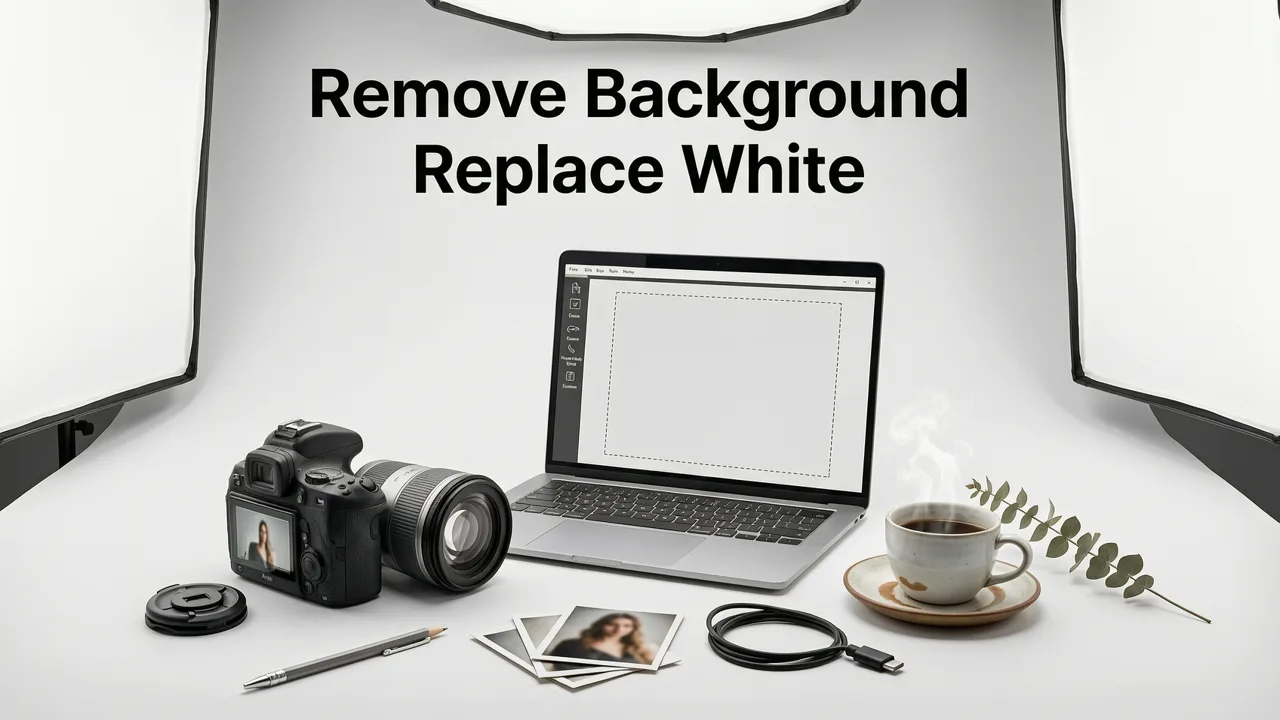
The process is designed to be as simple as possible. Follow these steps to go from a raw photo to a publication-ready white-background image in under a minute.
- Upload your image. Drag and drop a JPG, PNG, or WebP file into AI Image Editor. The tool accepts photos up to 50 MP.
- Enter your prompt. Type "remove background and replace with white" in the text field — or select the one-click Background Replacement preset.
- Review the preview. The AI detects the subject, removes the existing backdrop, and fills the canvas with a pure white layer. Zoom in to check edge accuracy around hair, glass, or fine details.
- Fine-tune if needed. Use the edge-refinement slider to tighten or soften the mask boundary. You can also adjust shadow intensity to keep the subject from looking like it is floating.
- Download. Export as PNG (for transparency support) or JPG (for smaller file size) at your preferred resolution.
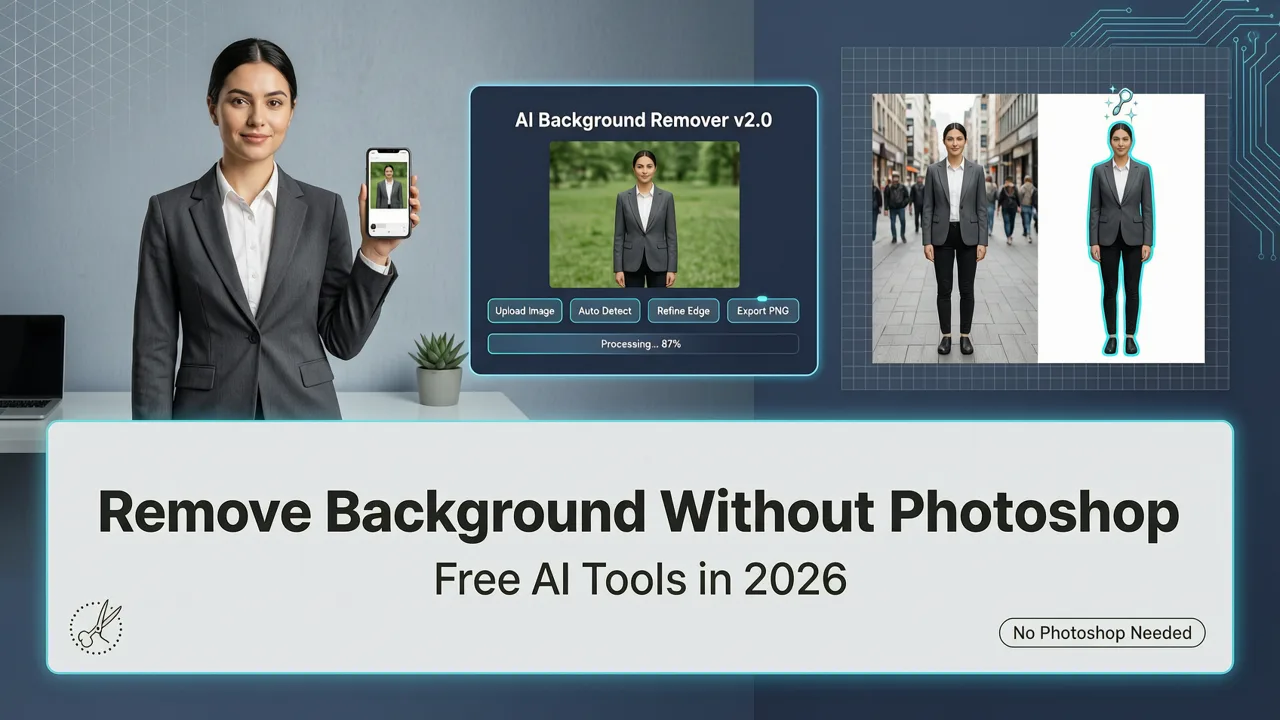
The entire workflow runs in your browser, so there is nothing to install. If you want a deeper look at the technology behind the scenes, our guide on removing backgrounds without Photoshop breaks down the AI segmentation models that make this possible.
What "Remove Background and Replace with White" Actually Means Technically
When you ask an AI tool to remove background and replace with white, three distinct operations happen behind the scenes:
1. Semantic Segmentation
The AI analyzes every pixel in the image and classifies it as either foreground (your subject) or background (everything else). Modern segmentation models in 2026 use transformer-based architectures that understand context — so they can tell the difference between a person's hair and a similarly colored wall, or between a product and its reflective surface.
2. Alpha Matte Generation
Rather than creating a hard cut-out, the tool generates an alpha matte — a grayscale map where white means fully opaque, black means fully transparent, and shades of gray represent semi-transparent edges. This is what gives hair, fur, smoke, and glass a natural, feathered boundary instead of a jagged silhouette.
3. Background Compositing
Finally, the system places the segmented subject onto a new white layer. Advanced compositing engines also recalculate ambient lighting and subtle contact shadows so the subject looks like it belongs on the white surface rather than floating above it.
White Background Best Practices for Ecommerce in 2026
Getting a technically clean cut-out is only half the battle. To maximize conversion and marketplace acceptance, follow these guidelines when you remove background and replace with white for product photography.
| Guideline | Recommendation | Why It Matters |
|---|---|---|
| Background color | Pure white (#FFFFFF) | Meets Amazon, Google Shopping, and most marketplace requirements. |
| Subject fill | 85–90% of frame | Ensures the product is the focal point without excessive empty space. |
| Resolution | Minimum 2000 × 2000 px | Supports zoom functionality on product detail pages. |
| File format | JPG for listings, PNG for web design | JPG keeps file size small; PNG preserves transparency if needed. |
| Shadow | Subtle contact shadow at 10–20% opacity | Adds dimension without violating white-background rules. |
| Color accuracy | sRGB color profile | Ensures consistent color rendering across monitors and devices. |
For sellers managing large catalogs, AI Image Editor supports batch processing so you can remove background and replace with white across hundreds of SKUs in a single session. Explore our recommendations for the best AI background remover for ecommerce product photos to see how batch workflows compare across platforms.
How AI Image Editor Handles Tricky Edges
Not every subject is easy to isolate. Hair, fur, translucent materials, and fine mesh are the classic problem areas. Here is how the 2026 generation of AI editors addresses them.
Hair and Fur
The segmentation model is trained on millions of portrait and animal images, so it recognizes the difference between individual strands and background textures. The alpha matte preserves semi-transparent tips, avoiding the helmet-like look that older tools produced.
Glass and Transparent Objects
Reflective and see-through surfaces confuse simple color-based removers. AI Image Editor uses edge-detection heuristics combined with object-recognition context to separate a glass bottle from the scene behind it, preserving highlights and refractions.
Fine Product Details
Jewelry prongs, lace patterns, and wire mesh all require sub-pixel accuracy. The tool's edge-refinement slider lets you manually tune the matte boundary in areas where the automatic detection needs a nudge.
If your portrait work also involves skin retouching, you might pair background replacement with AI Image Editor portrait retouching for a complete headshot workflow — or use the AI skin smoothing tool for natural-looking skin before dropping the subject onto a white canvas.
Remove Background and Replace with White vs. Other Background Options
White is the default for good reason, but it is not the only option. Here is a quick comparison so you can choose the right backdrop for each use case.
| Background Type | Best For | Marketplace Acceptance | File Size Impact |
|---|---|---|---|
| Pure white (#FFFFFF) | Product listings, headshots, catalogs | Required or preferred by most platforms | Smallest — compresses efficiently |
| Light gray gradient | Lifestyle ecommerce, lookbooks | Accepted by most; not Amazon-primary compliant | Moderate |
| Custom scene (AI-generated) | Social media ads, brand campaigns | Not compliant for primary listings | Larger — complex textures increase size |
| Transparent (PNG) | Web design overlays, mockups | N/A — used for design flexibility | Larger — PNG is lossless |
Common Mistakes When Replacing Backgrounds with White
Even with powerful AI, a few user errors can undermine the final result. Watch out for these pitfalls.
- Skipping the edge check. Always zoom to 100% and inspect the boundary. A one-pixel halo of the old background color is the most common giveaway.
- Ignoring lighting mismatch. If your original photo was shot under warm tungsten light, the subject will look out of place on a neutral white background. Use a white-balance correction before replacing the backdrop.
- Over-compressing the export. Aggressive JPG compression introduces artifacts around edges. Use quality settings of 90% or higher for product images.
- Forgetting color profiles. Export in sRGB unless your print workflow specifically requires Adobe RGB or CMYK.
- Neglecting shadow. A completely shadow-free subject can look artificial. Add a soft contact shadow at low opacity for realism.
AI Background Removal in 2026: What Has Changed
The underlying models powering background removal have evolved significantly. According to OpenAI's documentation, modern vision models now process images at resolutions and speeds that were impractical just two years ago. Meanwhile, Google's AI responsibility guidelines have pushed the industry toward transparent, user-consented editing — meaning the tools you use today are designed to preserve the integrity of the original subject while transforming the backdrop.
Key advances in 2026 include:
- Real-time preview — See the mask update live as you adjust parameters.
- Multi-subject awareness — The AI can distinguish between multiple objects and let you choose which to keep.
- Batch API access — Developers can integrate background removal into automated ecommerce pipelines.
- On-device processing — Privacy-sensitive workflows can run entirely in the browser without uploading to a server.
Who Benefits Most from Instant White Background Replacement
While anyone with a camera can use this tool, certain groups see the biggest return on investment.
Ecommerce Sellers
White-background product images are non-negotiable on major marketplaces. Replacing backgrounds in bulk saves hours of manual Photoshop work per catalog refresh.
Social Media Creators
A consistent white backdrop gives your feed a clean, professional aesthetic. Pair it with branded templates for a cohesive visual identity.
Marketers and Advertisers
Product cutouts on white backgrounds are the starting point for composite ad creative, A/B testing variations, and dynamic ad insertion.
Real Estate Agents
Remove cluttered backgrounds from property feature shots or agent headshots to maintain a polished brand presence.
Everyday Users
Whether you are updating your LinkedIn photo, creating invitation designs, or simply cleaning up a family snapshot, instant background replacement makes professional results accessible to everyone.
Getting Started with AI Image Editor
Ready to remove background and replace with white on your next image? The process takes less than a minute:
- Visit AI Image Editor and upload your photo.
- Type your instruction or select the white-background preset.
- Review, refine, and download in your preferred format.
No account is required for your first edit, and the free tier includes enough credits to test the tool on a full product shoot. Once you see how clean the edges look and how fast the workflow is, you will wonder why you ever opened a desktop editor for this task.
Final Thoughts
The ability to remove background and replace with white used to require expensive software, hours of training, and painstaking manual masking. In 2026, AI Image Editor condenses that entire workflow into a single prompt and a few seconds of processing. Whether you are preparing Amazon listings, refreshing your LinkedIn headshot, or building ad creative, the tool delivers marketplace-ready results with edge quality that rivals professional retouchers. Upload your first image today and see the difference for yourself.