AI Skin Smoothing Tool — Natural-Looking Results in Seconds
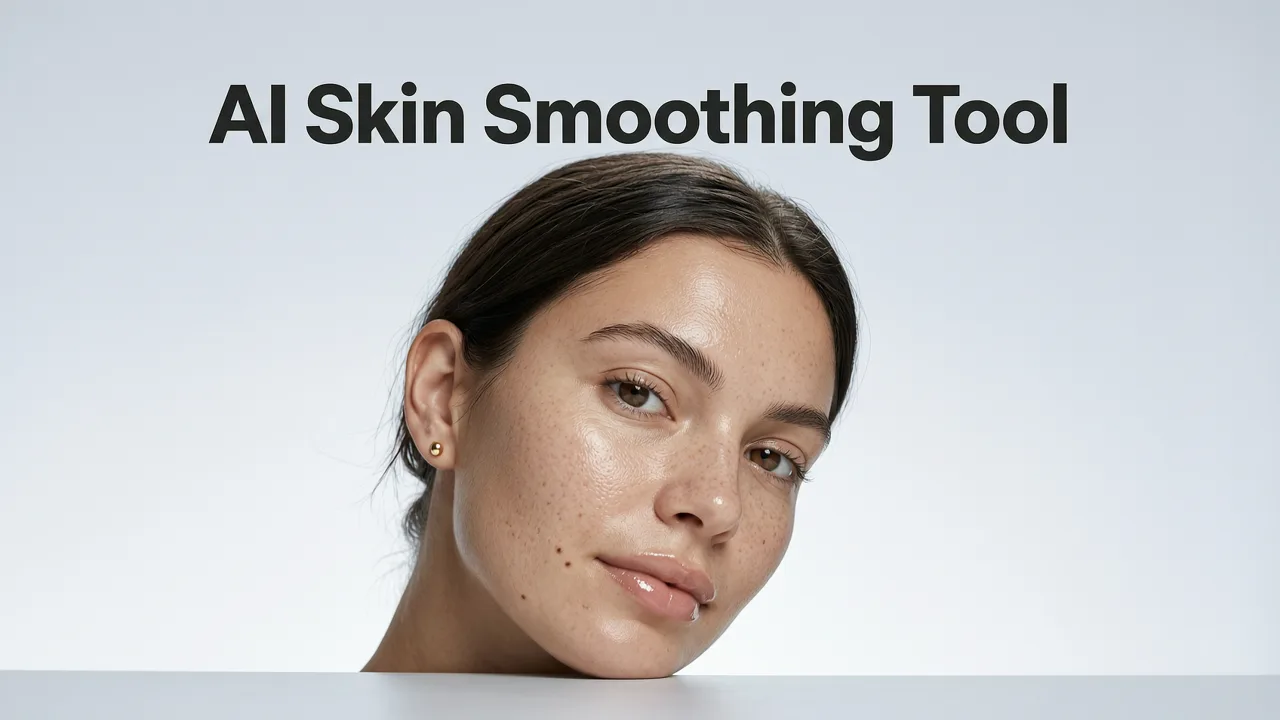
If you have ever stared at a portrait and wished you could erase blemishes without turning the subject into a plastic mannequin, you already understand the promise — and the peril — of AI skin smoothing. A modern AI skin smoothing tool removes imperfections while preserving pores, texture, and natural light falloff, delivering polished, camera-ready results in seconds rather than hours.
This guide explains how AI-powered skin smoothing works in 2026, what separates a tasteful retouch from an over-processed one, and how creators, ecommerce sellers, and marketers can integrate the workflow into their daily output without sacrificing realism.
What Is an AI Skin Smoothing Tool?
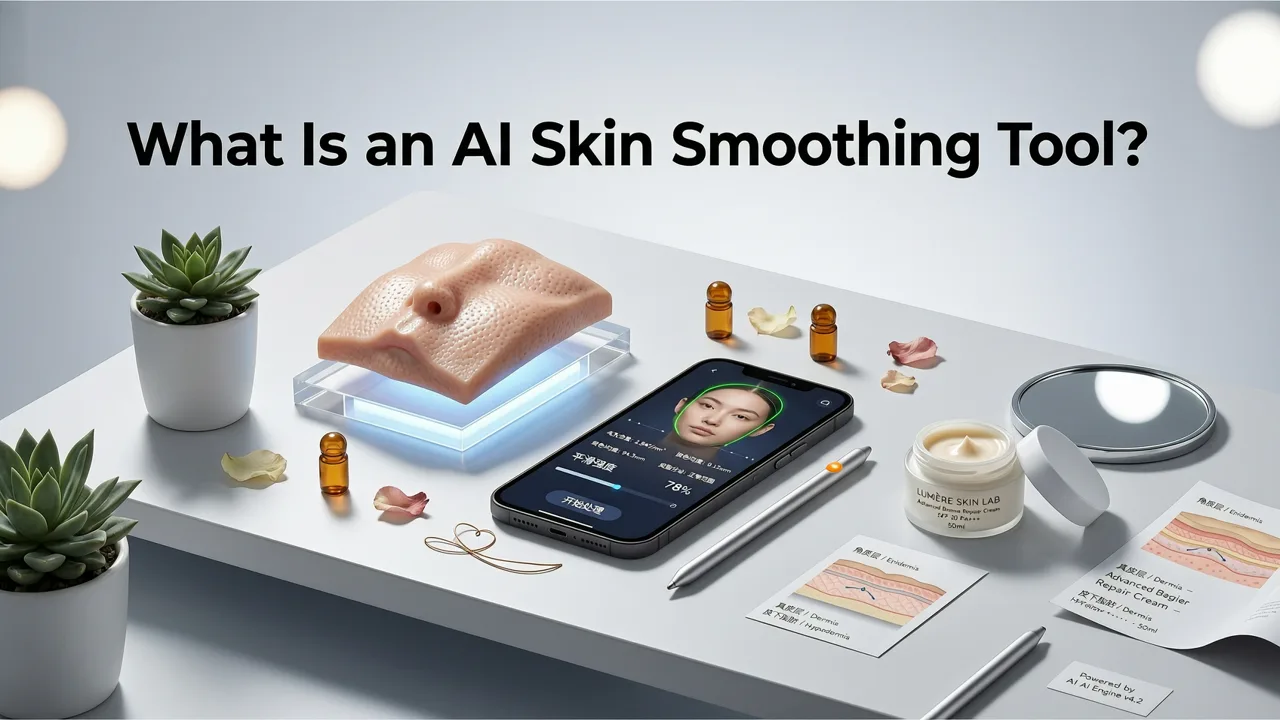
An AI skin smoothing tool is a software feature — often part of a broader AI photo editor — that uses deep-learning models trained on thousands of high-resolution portraits to detect facial regions, classify skin versus non-skin pixels, and selectively reduce the visibility of blemishes, redness, uneven tone, and fine lines. Unlike legacy frequency-separation techniques that require manual masking, AI smoothing automates the recognition and refinement steps while preserving structural detail.
🎬 Testing VanityFilter — A Skin Smoothing Tool for Creators use code Hollywoodai
by Hollywood AI studios
In 2026, the best implementations go further: they analyze lighting direction, skin undertone, and subject demographics to apply adjustments that feel invisible. The result is a portrait that looks professionally lit and retouched, yet still recognizably human.
How AI Skin Smoothing Works Under the Hood
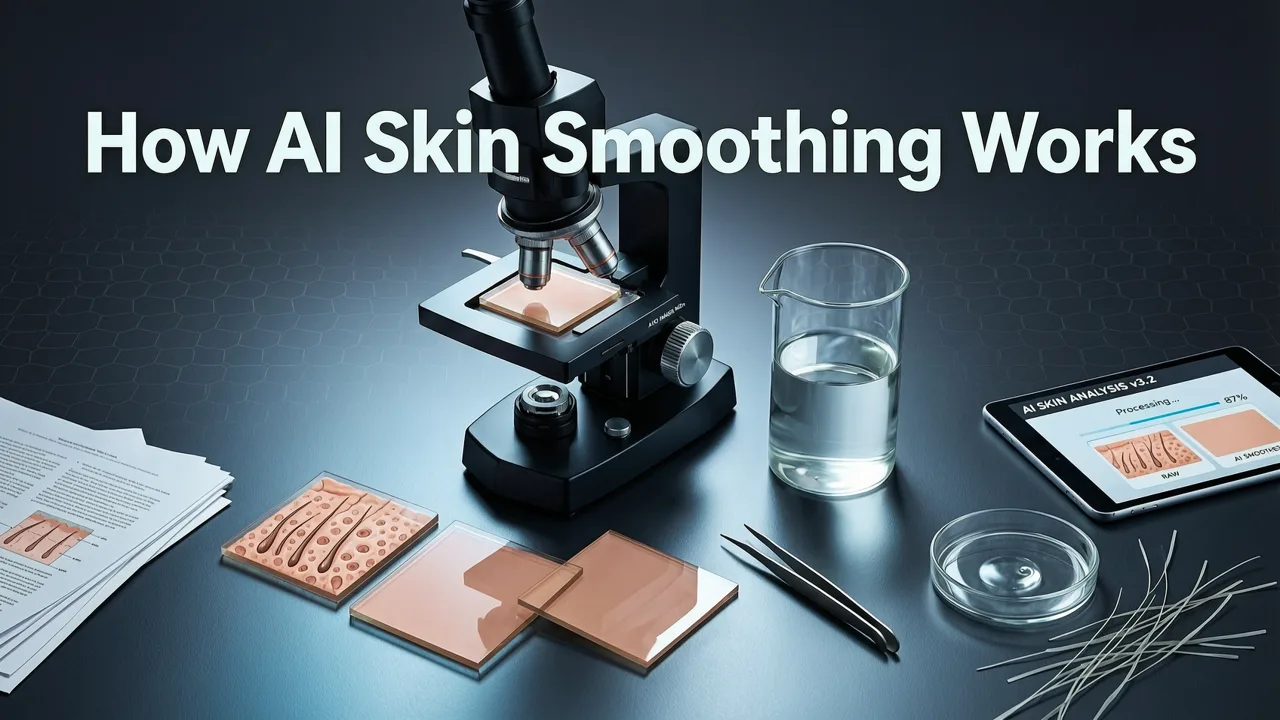
Modern skin smoothing pipelines typically follow four stages:
- Face detection and landmark mapping. A neural network locates the face, eyes, nose, lips, and jawline to create a precise region of interest.
- Skin segmentation. A second model separates skin pixels from hair, clothing, background, and accessories using contextual cues rather than simple color thresholds.
- Imperfection classification. The system identifies blemishes, pores, scars, and texture noise, distinguishing them from intentional features like freckles or moles the user may want to keep.
- Adaptive smoothing and reconstruction. Adjustments are applied with variable intensity based on local contrast and lighting, then blended back into the original image using learned texture priors.
Because each step is driven by models trained on diverse datasets, the output avoids the uniform blur that plagued older tools. For a deeper look at how AI editing tools operate across the full workflow, the AI Photo Editor — Aimageditor.com Official Platform overview breaks down the architecture in plain language.
Why Natural-Looking Results Matter in 2026
Audiences in 2026 are visually literate. Social media feeds, ecommerce product pages, and brand campaigns are scrutinized for authenticity. Over-smoothed skin reads as synthetic and can undermine trust — especially in sectors like skincare, wellness, and professional headshots where credibility is currency.
Natural-looking smoothing preserves three critical cues:
- Pore structure. Visible (but refined) pores signal that the subject is a real person, not a render.
- Micro-contrast. Subtle shadow transitions around the nose, lips, and cheekbones maintain dimensional realism.
- Color variation. Slight undertone shifts across the face prevent the flat, airbrushed appearance that triggers viewer skepticism.
When these cues are preserved, the retouch enhances rather than replaces the original photograph.
Key Features to Look for in an AI Skin Smoothing Tool
Not all smoothing tools are created equal. When evaluating options, prioritize the following capabilities:
- Adjustable intensity. A slider or prompt-based control that lets you dial smoothing from subtle to moderate.
- Texture preservation. The tool should retain pore detail and fine hair strands rather than blurring them away.
- Selective targeting. Ability to treat blemishes, redness, and under-eye circles independently.
- Batch processing. Essential for ecommerce sellers and marketers handling large photo volumes.
- Non-destructive output. The original image should remain accessible or the edits should be reversible.
Platforms like AI Image Editor Generative Fill Tool combine smoothing with generative capabilities, letting you refine skin and modify backgrounds in a single pass.
Step-by-Step Workflow: Smoothing Skin with AI in 2026
Below is a practical workflow you can follow with most leading AI editors. The steps assume you are working with a portrait that needs subtle refinement for social media or professional use.
Step 1 — Upload Your Image
Start with the highest-resolution original available. Upscaling before smoothing can introduce artifacts; if your source is low-res, consider using a dedicated upscaler first. The Best AI Upscaler for Portraits in 2026 guide compares leading options.
Step 2 — Select the Skin Smoothing Tool
Navigate to the portrait or retouching section of your editor. Choose the skin smoothing or skin retouch module. Some platforms label it as "portrait enhance" or "blemish removal."
Step 3 — Set Your Intensity
Begin with a low-to-medium intensity setting. You can always increase smoothing in a second pass, but reversing over-processing is difficult. Aim for a result where pores are still faintly visible under close inspection.
Step 4 — Review and Refine
Zoom to 100 percent and inspect the cheeks, forehead, and jawline — areas where smoothing is most noticeable. If skin looks waxy, reduce intensity. If blemishes remain visible, apply a targeted blemish removal pass rather than increasing global smoothing.
Step 5 — Export at Full Quality
Save the final image in a lossless or high-quality format. For web use, a quality-85 JPEG balances file size and fidelity.
AI Skin Smoothing vs. Manual Retouching: A Comparison
Understanding the trade-offs between AI-driven and manual retouching helps you choose the right approach for each project.
| Criteria | AI Skin Smoothing Tool | Manual Retouching (Frequency Separation) |
|---|---|---|
| Speed | Seconds per image | 5–20 minutes per image |
| Skill Required | None to minimal | Advanced Photoshop proficiency |
| Consistency Across Batches | Highly consistent | Varies with operator fatigue |
| Fine-Grained Control | Moderate (improving yearly) | Full pixel-level control |
| Best Use Case | High-volume social, ecommerce, marketing | Editorial, magazine, luxury campaigns |
For most everyday and commercial use cases in 2026, AI smoothing delivers 90 percent of the visual result at 5 percent of the time investment. Manual retouching remains valuable for hero imagery where every pixel is scrutinized.
Common Mistakes That Produce Unnatural Results
Even with powerful AI, poor outcomes usually trace back to user error. Avoid these pitfalls:
- Maxing out the intensity slider. This is the fastest route to the "plastic skin" look. Start low and iterate.
- Smoothing before upscaling. If you upscale after smoothing, the AI may amplify residual blur patterns.
- Ignoring lighting context. A portrait lit with harsh flash will show more texture than one lit with soft window light. Adjust intensity accordingly.
- Applying global smoothing to group photos. Faces at different distances and angles need individual treatment.
- Forgetting to preserve intentional features. Freckles, beauty marks, and cultural skin characteristics should remain unless the subject requests otherwise.
Who Benefits Most from AI Skin Smoothing?
Different user groups leverage skin smoothing for distinct reasons:
- Content creators and influencers use it to maintain a polished feed aesthetic without hiring a retoucher for every post.
- Ecommerce sellers apply it to model shots so that skin tone appears consistent across product catalogs.
- Marketers and brand teams rely on it for campaign assets that must look professional yet authentic.
- Everyday consumers use it for personal photos, family portraits, and social sharing.
In each case, the goal is the same: reduce distraction from minor imperfections so the viewer focuses on the subject, the product, or the message.
Ethical Considerations and Responsible Use
As AI editing tools become more accessible, responsible usage matters. Industry bodies and platform developers have published guidance on transparent editing. Google's AI responsibility principles emphasize that AI should be used to augment human capability without deceiving audiences. OpenAI's documentation similarly encourages clear disclosure when synthetic modifications are material.
Practical guidelines include:
- Avoid smoothing that fundamentally alters a subject's appearance in contexts where authenticity is expected, such as journalistic photography.
- Respect the subject's preferences — some individuals prefer minimal retouching.
- Disclose heavy retouching when required by platform policies or advertising standards.
Tips for Getting the Most Natural Results
Small adjustments make a significant difference in final output quality:
- Work with well-lit originals. Good lighting reduces the amount of smoothing needed.
- Use smoothing as a base layer, then add targeted fixes. Combine global smoothing with spot corrections for blemishes.
- Compare before and after at 100 percent zoom. If you cannot tell the difference at arm's length but notice refinement up close, you have found the sweet spot.
- Preserve skin color variation. Avoid tools that flatten undertone differences between the cheeks, forehead, and chin.
- Pair smoothing with subtle sharpening. A light sharpening pass on the eyes and hair restores perceived crispness.
Integrating Skin Smoothing Into a Broader Editing Workflow
Skin smoothing is rarely the only edit a portrait needs. In a typical 2026 workflow, creators combine it with background adjustments, color grading, and upscaling. For example, you might use generative fill to replace a distracting backdrop — a process detailed in the How to Use Generative Fill in Photoshop guide — then apply skin smoothing, and finish with a subtle color grade for cohesion.
Treating skin smoothing as one step in a pipeline, rather than a standalone fix, produces more harmonious final images.
Frequently Asked Questions
Is AI skin smoothing suitable for professional headshots?
Yes. When used at low-to-medium intensity, AI skin smoothing produces results that meet professional headshot standards. The key is to retain enough texture so the subject looks authentic under close scrutiny, which matters for LinkedIn profiles, corporate bios, and speaker pages.
Can AI skin smoothing tools handle diverse skin tones?
Leading tools in 2026 are trained on diverse datasets and handle a wide range of skin tones effectively. However, results can vary by platform, so it is worth testing a few options if you regularly photograph subjects with deeper or highly varied complexions.
Does AI smoothing work on group photos?
Most tools detect and smooth each face individually. For best results, ensure all faces are reasonably well-lit and unobstructed. Extremely small faces in the background may receive less detailed treatment.
How is AI smoothing different from a simple blur filter?
A blur filter reduces detail uniformly across the entire image or selection. AI skin smoothing uses semantic understanding to target only imperfections while preserving pores, fine hairs, and structural contrast, producing a far more natural result.
Final Thoughts
An AI skin smoothing tool is no longer a luxury reserved for high-end retouchers — it is an everyday utility that empowers creators, sellers, and marketers to produce polished portraits in seconds. The difference between a good result and a great one comes down to restraint: use moderate intensity, preserve texture, and treat smoothing as one layer in a thoughtful editing workflow.
Ready to see the difference for yourself? Upload a portrait to your preferred AI editor, start with a low smoothing setting, and compare the before and after. You will likely find that less truly is more — and that natural-looking results are only seconds away.