Best AI Tool to Enhance Old Photos in 2026
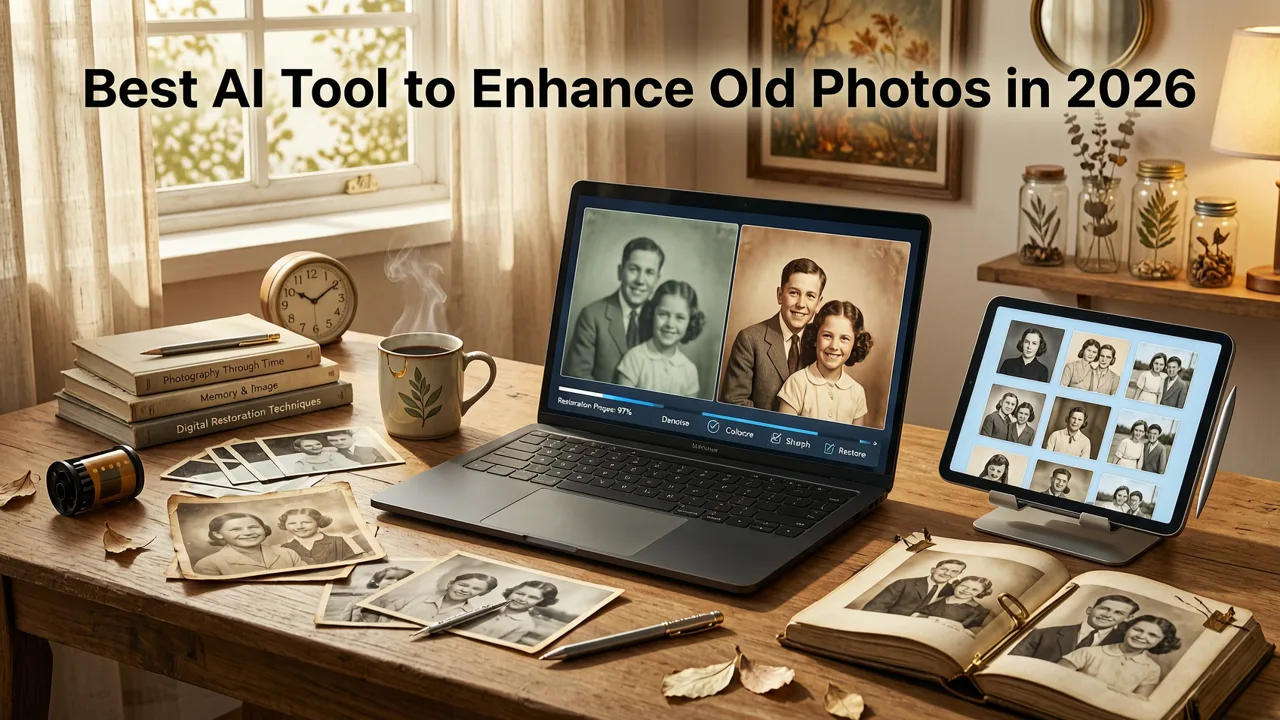
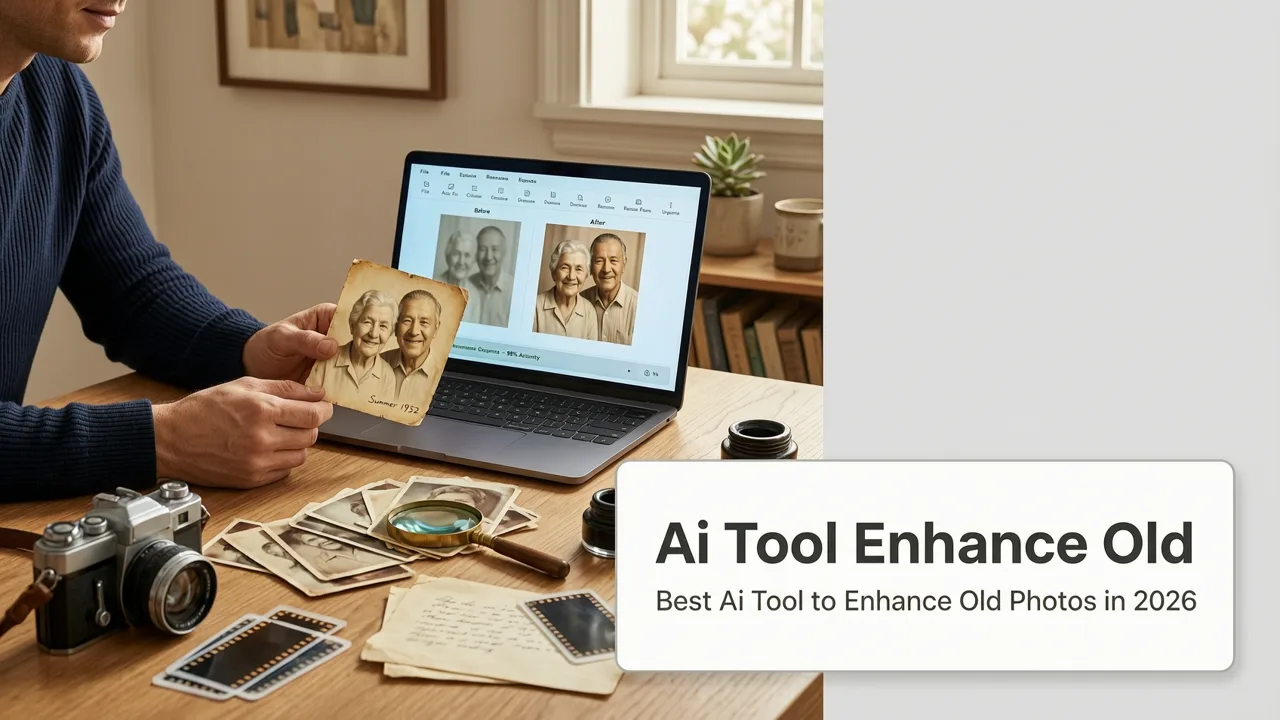
If you have a shoebox of faded family snapshots, a water-damaged wedding portrait, or a grainy black-and-white print from the 1950s, the best AI tool to enhance old photos in 2026 can transform those fragile memories into crisp, color-accurate, high-resolution images in under a minute. AI Image Editor combines perceptual reconstruction, intelligent colorization, and damage repair into a single prompt-based workflow—no Photoshop skills, no expensive software, and no downloads required.
This guide walks you through what separates a genuinely effective old-photo enhancer from the dozens of apps that simply sharpen artifacts, how to use the tool step by step, and why millions of creators, genealogists, and ecommerce sellers now choose AI Image Editor over legacy desktop software.
Why Enhancing Old Photos Is Harder Than It Looks
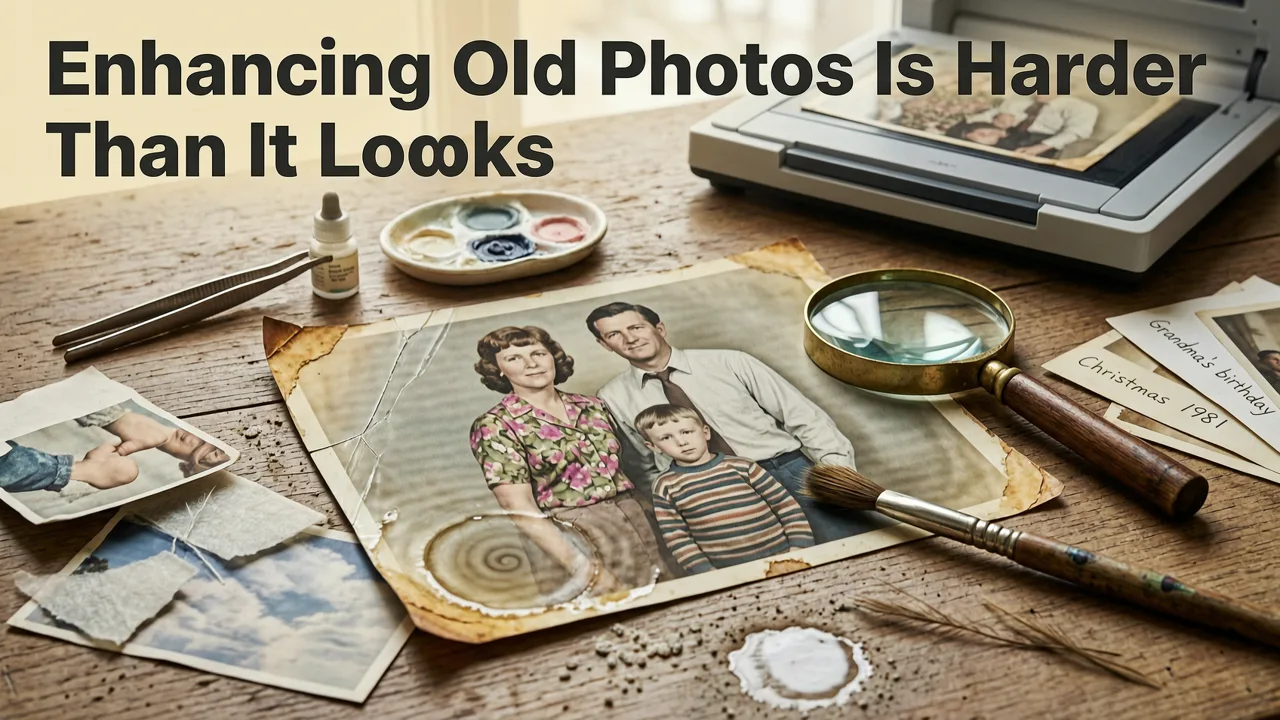
Old photographs present a unique set of challenges that generic image enhancers routinely fail to solve. Understanding these challenges explains why the best AI tool to enhance old photos must go far beyond basic sharpening filters.
Can AI Really Fix Old Photos? The Best Tools of 2025 Revealed!
by ShotKit
The Damage Profile of Vintage Prints
- Silver halide degradation: Black-and-white prints oxidize over decades, creating uneven tonal shifts and yellowing that simple contrast sliders cannot fix.
- Color fade: Chromogenic color prints from the 1960s through 1990s lose cyan and magenta dyes first, leaving images with a harsh red-orange cast.
- Physical damage: Creases, tears, water stains, mold spots, and emulsion scratches require inpainting that reconstructs missing texture rather than cloning nearby pixels.
- Low original resolution: Many old photos were captured on medium-format or 35mm film, then scanned at 72–150 DPI—resulting in tiny digital files that need intelligent upscaling.
Why Generic Upscalers Struggle
Most consumer upscalers treat every image the same way: they interpolate pixels, apply a sharpening kernel, and call it a day. The result on old photos is often worse than the original—faces turn waxy, textures become repetitive, and scratches get sharpened into prominent lines. The 2026 generation of perceptual AI models understands context: they recognize that a crease across a cheekbone is damage, not a facial feature, and they reconstruct accordingly.
What Makes the Best AI Tool to Enhance Old Photos in 2026
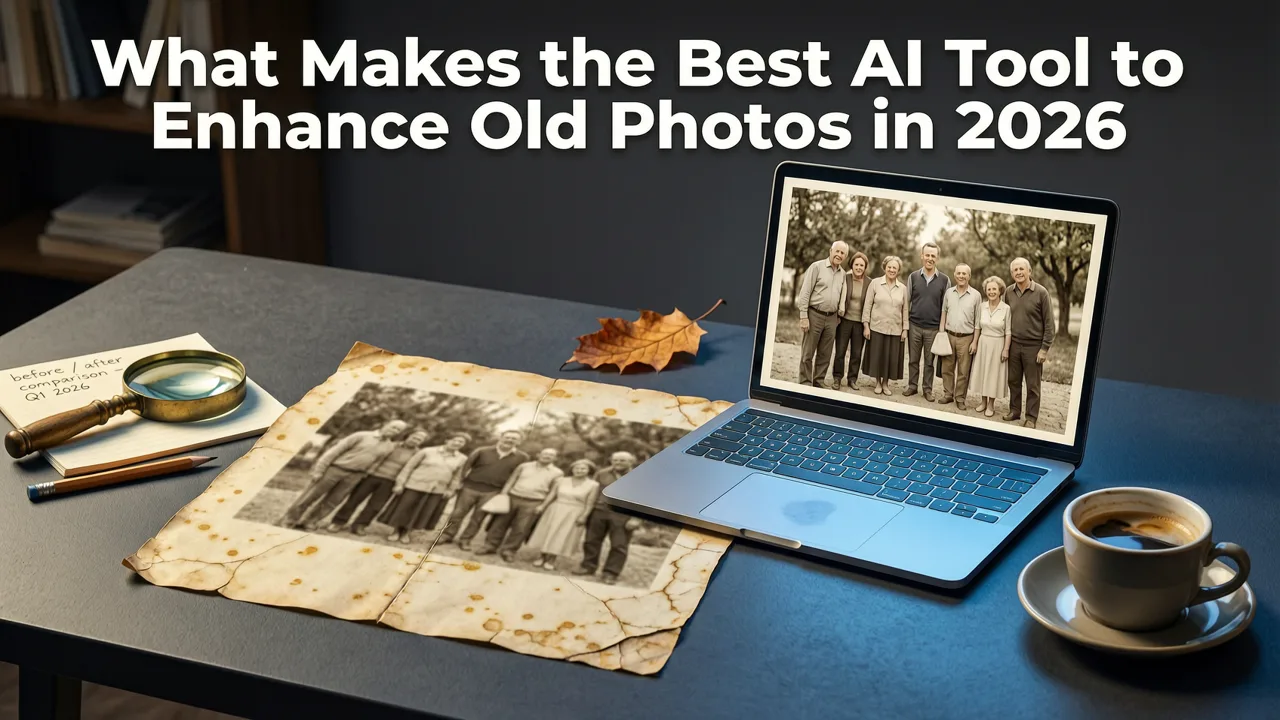
After evaluating dozens of platforms against real vintage scans, five criteria separate the best from the merely adequate.
| Criterion | What to Look For | Why It Matters |
|---|---|---|
| Perceptual Reconstruction | Models trained on paired degraded/restored datasets | Rebuilds missing detail instead of guessing from neighboring pixels |
| Intelligent Colorization | Semantic understanding of objects, skin tones, and historical accuracy | Produces believable color rather than flat, desaturated tints |
| Damage-Aware Inpainting | Scratch, tear, and stain detection with contextual fill | Removes physical defects without creating ghosting or cloning artifacts |
| Face-Specific Enhancement | Dedicated portrait pipeline with identity preservation | Restores facial features accurately—critical for genealogy and memorial projects |
| Batch Processing | Multi-image upload with consistent output settings | Saves hours when restoring entire photo albums or archival collections |
How AI Image Editor Enhances Old Photos: A 2026 Workflow
AI Image Editor consolidates every restoration step into a single, prompt-driven interface. Here is the workflow that professional archivists and everyday users follow to get gallery-quality results.
Step 1 — Upload Your Scan
Drag your scanned photo into the editor. AI Image Editor accepts JPEG, PNG, TIFF, and even HEIC files up to 50 MB. For best results, scan at 300 DPI or higher on a flatbed scanner; the AI will handle the rest.
Step 2 — Choose Your Enhancement Path
The platform offers targeted tools for each restoration need:
- Photo Restoration: Removes scratches, tears, stains, and fold marks while reconstructing missing texture.
- Colorization: Adds historically plausible color to black-and-white images using semantic object recognition.
- Face Enhancement: Rebuilds facial detail with identity preservation—ideal for blurry portraits. If you need dedicated portrait upscaling, the Free AI Portrait Upscaler delivers instant HD results.
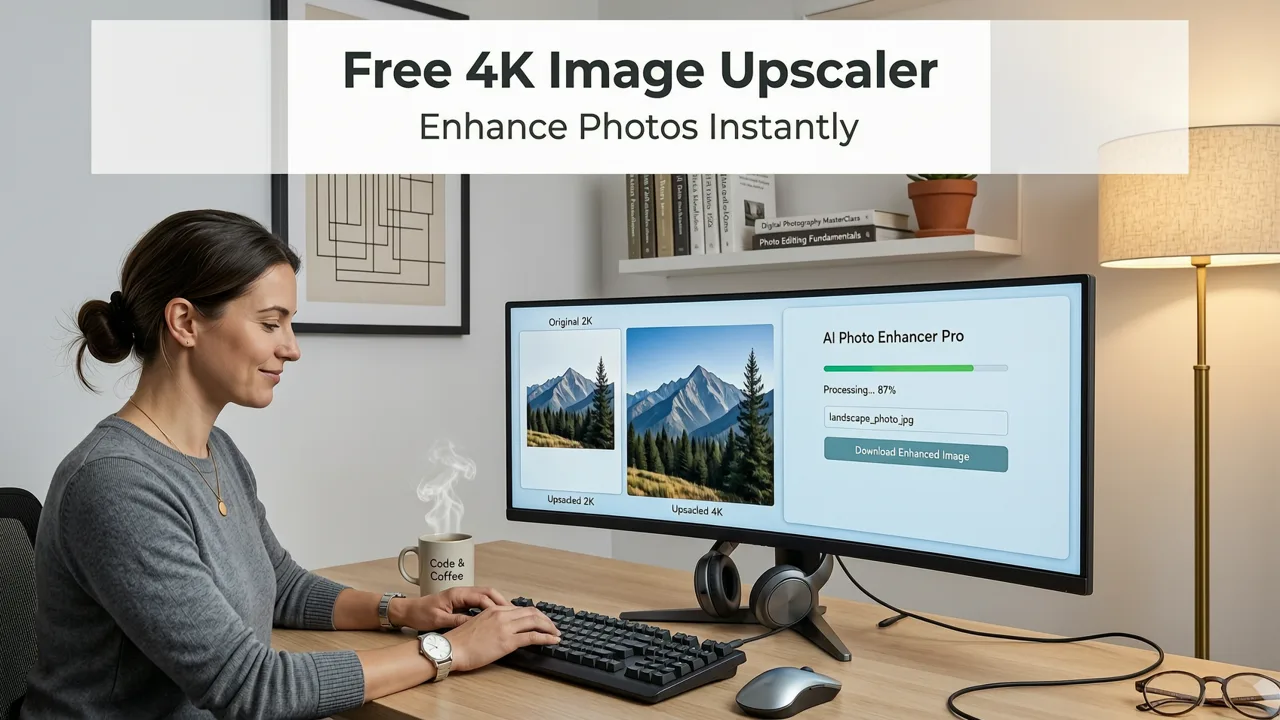
- Upscaling: Enlarges low-resolution scans up to 4× without losing quality. For a deeper look at maintaining fidelity during enlargement, read our guide on how to upscale photos without losing quality.
Step 3 — Describe or Select
You can either select a preset restoration mode or type a natural-language prompt such as "Remove the water stain in the lower right corner and colorize this 1940s portrait with historically accurate tones." The AI parses your intent and applies the appropriate pipeline.
Step 4 — Review and Download
Preview the result at full resolution. If you need additional refinements—skin smoothing, background cleanup, or further sharpening—apply them with one click. Download in your preferred format and resolution.
AI Image Editor vs. Other Old Photo Enhancement Tools
To understand why AI Image Editor consistently ranks as the best AI tool to enhance old photos, compare it against the alternatives most users consider.
| Feature | AI Image Editor | Legacy Desktop Software | Generic Mobile Apps |
|---|---|---|---|
| Setup Required | None — browser-based | Download, install, license | App store download |
| Learning Curve | Prompt or one-click | Steep — layers, masks, brushes | Low but limited controls |
| Damage Repair | Context-aware inpainting | Manual clone stamp / healing brush | Basic auto-fix only |
| Colorization Quality | Semantic, historically informed | Manual layer coloring | Global tint overlay |
| Face Identity Preservation | Yes — dedicated portrait model | Depends on user skill | Often distorts features |
| Batch Processing | Full album upload | Actions/scripts (advanced) | One image at a time |
| Output Resolution | Up to 4× upscale included | Depends on original file | Compressed, low-res output |
Who Benefits Most From AI Photo Restoration in 2026
Genealogists and Family Historians
Restoring ancestor portraits for family trees, reunion materials, or archival submissions requires faithful detail and accurate colorization. AI Image Editor preserves facial identity while removing decades of damage—something no filter-based app can achieve.
Ecommerce Sellers and Marketers
Vintage product photography, retro branding campaigns, and heritage marketing assets all benefit from clean, high-resolution scans. If you are comparing tools for product imagery, our breakdown of the best Canva image upscaler alternatives provides additional context.
Content Creators and Social Media Users
Before-and-after restoration reels consistently rank among the most shared content formats on social platforms. A fast, browser-based workflow means you can scan, restore, and post within minutes.
Everyday Users Preserving Memories
Whether you are digitizing a parent's wedding album or restoring a child's faded school portrait, the tool removes the technical barrier that once required a professional retoucher.
The 2026 Shift: From Pixel-Filling to Perceptual Reconstruction
The most important advance in AI photo enhancement this year is the move from interpolation-based upscaling to perceptual reconstruction. Older models filled missing pixels by averaging nearby values—fast, but blurry. The 2026 generation of diffusion-based models understands what a pixel should represent: skin texture, fabric weave, foliage, brickwork. This contextual awareness is what makes modern restoration look convincingly real rather than artificially sharpened.
Responsible AI practices underpin these advances. Platforms like AI Image Editor follow Google's AI responsibility principles to ensure that enhancement tools are used ethically—preserving historical accuracy and avoiding misleading alterations.
Tips for Scanning Old Photos Before AI Enhancement
The quality of your scan directly impacts the quality of the AI restoration. Follow these guidelines for optimal results:
- Clean the print first: Use a soft, lint-free cloth to remove dust. Avoid liquids on the photo surface.
- Scan at 300–600 DPI: Higher DPI captures more original detail for the AI to work with.
- Use a flatbed scanner: Phone camera apps introduce lens distortion, shadows, and inconsistent lighting.
- Save as uncompressed TIFF or maximum-quality JPEG: Compression artifacts compound during AI processing.
- Scan in color even for black-and-white prints: The color data helps the AI detect stains, fading patterns, and paper tone for more accurate restoration.
Common Mistakes to Avoid When Enhancing Old Photos
- Over-sharpening: Aggressive sharpening amplifies scratches and grain. Let the AI handle detail reconstruction instead of applying manual sharpen filters first.
- Applying global auto-fix before restoration: Auto-contrast and auto-color tools can lock in damage patterns, making them harder for the AI to remove later.
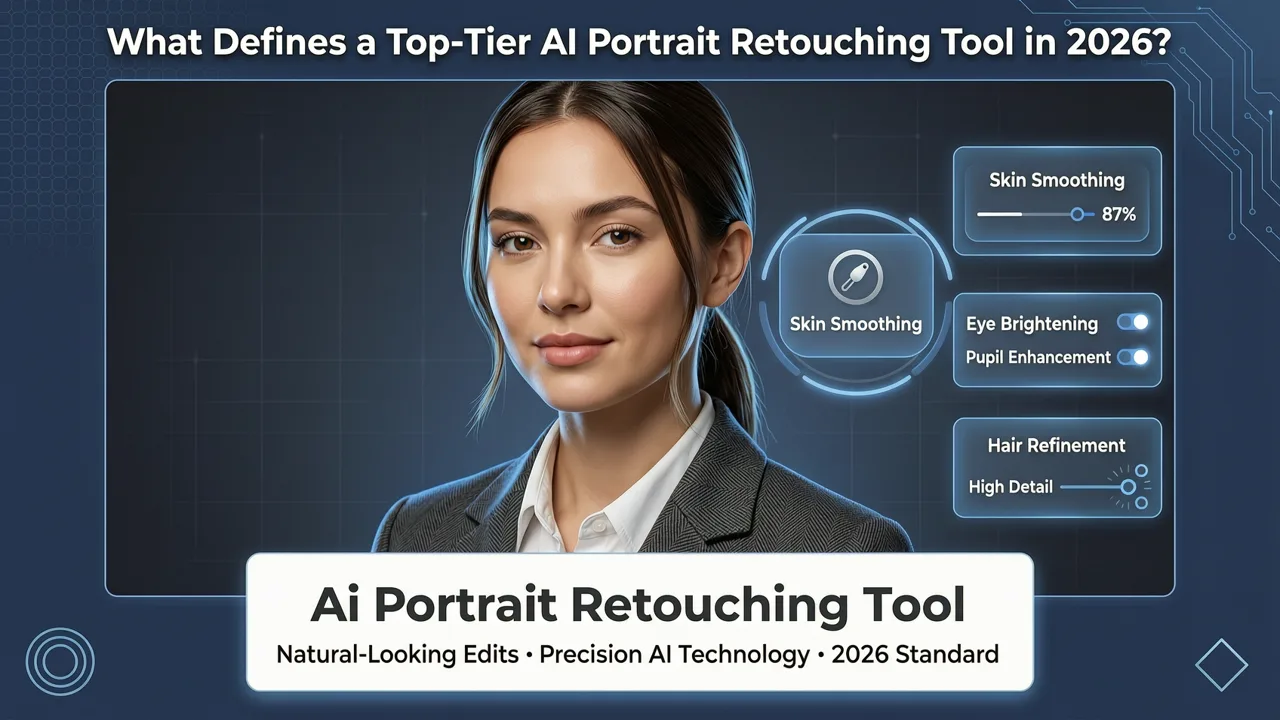
- Ignoring face preservation: Some enhancers smooth faces into unrecognizable blurs. Always choose a tool with a dedicated portrait pipeline—AI skin smoothing features can help refine results after restoration without losing identity.
- Expecting a single click to fix everything: Severely damaged photos may benefit from a two-pass approach: restore damage first, then enhance detail and color.
Pricing and Accessibility
AI Image Editor operates on a freemium model with generous free-tier access for basic restoration tasks. Premium plans unlock batch processing, 4× upscaling, and priority GPU rendering. There is no software to install, no subscription lock-in for one-off projects, and no watermarks on free outputs—making it accessible whether you are restoring a single heirloom photo or processing an entire archive.
Frequently Asked Questions
Can AI really restore severely damaged old photos?
Yes. Modern perceptual AI models can reconstruct missing regions caused by tears, water damage, and heavy scratching by analyzing surrounding context and generating plausible replacement texture. Severely damaged faces may require a second refinement pass, but most family photos see dramatic improvement in a single step.
Will the AI change how people look in old portraits?
No. The best tools, including AI Image Editor, use identity-preserving models that enhance detail without altering facial structure. The goal is to reveal what the original photographer captured—not to reimagine the subject.
Is colorization historically accurate?
AI colorization in 2026 uses semantic understanding to assign colors based on object recognition and historical training data. Results are highly plausible for clothing, skin, and environments, though niche items (military uniforms, specific fashion palettes) may benefit from manual verification.
Do I need design skills to use these tools?
No. AI Image Editor is prompt-driven and browser-based. You upload a photo, describe what you want, and download the result. There are no layers, masks, or brushes to learn.
Start Restoring Your Old Photos Today
The best AI tool to enhance old photos in 2026 is the one that combines perceptual reconstruction, intelligent colorization, damage-aware inpainting, and face-identity preservation—all in a workflow that takes seconds, not hours. AI Image Editor delivers exactly that, whether you are preserving a single family heirloom or processing an entire archival collection. Upload your first photo now and see decades of damage disappear in a single click.