Why Creators Are Searching for a Best Adobe Background Remover Alternative in 2026
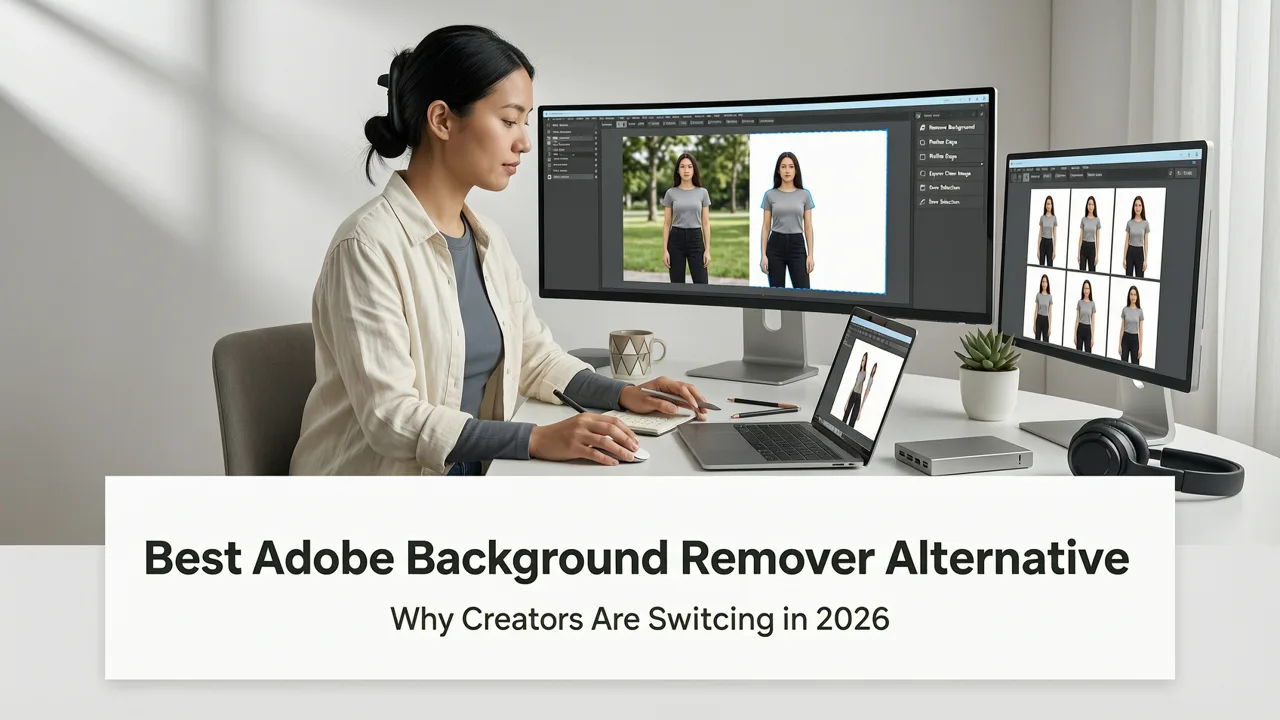
If you have ever paid for an Adobe Creative Cloud subscription just to crop a subject out of a busy photo, you already know why the search for a best Adobe Background Remover alternative has exploded in 2026. Adobe's Select Subject and Remove Background tools still deliver solid edge detection, but the monthly cost, desktop-only workflow, and steep learning curve push millions of creators toward faster, browser-based options that handle the job in seconds.
The short answer: AI Image Editor is the best Adobe Background Remover alternative for most users in 2026 because it combines one-click background removal, transparent PNG export, and a full suite of follow-up edits — all inside a free browser tab with no download required. Below, we break down why the shift is happening, how the leading alternatives compare, and exactly how to get studio-quality cutouts without opening Photoshop.
What Adobe's Background Remover Actually Does — and Where It Falls Short

Adobe's Remove Background feature, introduced in Photoshop and later rolled out across Express and Firefly, uses a segmentation neural network to separate foreground subjects from their surroundings. It works well on clean portraits, products on plain surfaces, and well-lit studio shots.
I Replaced ALL my ADOBE APPS with these [free or cheaper] Alternatives!
by Joris Hermans
However, in everyday use across 2026, creators consistently hit four pain points:
- Subscription cost: Adobe's Photography Plan starts at a monthly fee that adds up quickly for freelancers, ecommerce sellers, and social media managers who only need occasional cutouts.
- Desktop dependency: Full background removal with fine-tuning requires Photoshop or Illustrator on a capable machine — a barrier for creators working from phones, Chromebooks, or shared office computers.
- Complex edge failures: Wispy hair, translucent fabrics, chain-link fences, and motion-blurred subjects still produce halos or patchy masks that need manual cleanup with the Refine Edge brush.
- Workflow friction: Exporting a transparent PNG, resizing it, and then retouching the subject requires switching between multiple tools and panels.
These friction points are exactly what the best Adobe Background Remover alternatives are designed to solve.
The 2026 Landscape: How the Best Adobe Background Remover Alternatives Compare

The background removal market has matured significantly. Modern AI models now handle hair-level masking, shadow preservation, and batch processing at speeds that rival — and often beat — desktop software. Here is how the leading options stack up side by side.
Feature and Pricing Comparison Table
| Tool | Platform | Free Tier | Hair & Edge Quality | Batch Processing | Integrated Retouching |
|---|---|---|---|---|---|
| AI Image Editor | Browser | Yes — unlimited basic removal | Excellent — AI hair masking | Yes | 200+ tools built in |
| Adobe Photoshop | Desktop | No (paid subscription) | Excellent with manual refinement | Actions & scripts | Full Photoshop suite |
| Remove.bg | Browser + API | Limited (low-res free) | Good on clean subjects | API available | None |
| Canva Background Remover | Browser | Pro subscription required | Good | Limited | Basic Canva edits |
| PhotoRoom | Mobile + Web | Limited free | Very good on products | Yes | Product-focused templates |
The table makes one thing clear: if you need background removal plus the ability to immediately retouch, replace the background, upscale, or generate new elements, an all-in-one platform like AI Image Editor eliminates the tool-hopping that slows down Adobe-only workflows.
What to Look for in the Best Adobe Background Remover Alternative
Not every background remover is built the same. Before committing to a tool, run it through this 2026 buyer's checklist:
- Edge accuracy on difficult subjects: Test it on curly hair, fur, jewelry, and translucent materials. If the tool leaves a white halo or clips into the subject, it is not production-ready.
- Transparent PNG export at full resolution: Many free tools downscale your output or add a watermark. The best options preserve your original resolution.
- Background replacement in the same workflow: After removing the background, you should be able to drop in a solid color, gradient, or AI-generated scene without leaving the editor.
- Batch and API support: Ecommerce sellers processing hundreds of product photos need bulk upload and programmatic access.
- Privacy and data handling: Your images should not be stored indefinitely or used to train public models without consent. Review the platform's responsible AI guidelines and data policies.
- No install required: A browser-based tool means you can edit from any device, including tablets and Chromebooks.
How AI Image Editor Works as the Best Adobe Background Remover Alternative
AI Image Editor approaches background removal as a starting point, not a finish line. The platform uses a transformer-based segmentation model trained on millions of labeled images to produce pixel-accurate masks in under two seconds. Here is the workflow:
Step 1 — Upload Your Image
Drag and drop any JPEG, PNG, or WebP file into the editor. Files up to 25 MB are supported, and processing happens server-side so your device never slows down.
Step 2 — Automatic Subject Detection
The AI identifies the primary subject — a person, product, pet, or object — and generates a mask. You can fine-tune the selection with a brush tool if you need to include or exclude specific areas.
Step 3 — Refine Edges
For subjects with fine detail like hair or feathers, the Edge Refinement slider smooths transitions and recovers strands that simpler models clip. This is the step where most Adobe alternatives fail, and where AI Image Editor consistently delivers.
Step 4 — Replace or Remove the Background
Choose a transparent background for PNG export, pick a solid color, or type a text prompt to generate a new scene. This is where the platform's generative fill capabilities add enormous value — you can place your subject on a beach, in a studio, or on a branded backdrop without opening a second tool.
Step 5 — Export or Continue Editing
Download the finished image, or keep working. Need to retouch skin? Use the AI portrait editing tools. Need a larger file for print? Run the AI image upscaler to push the resolution to 4K. Everything stays inside the same tab.
Who Benefits Most from Switching Away from Adobe for Background Removal
Ecommerce Sellers and Marketplace Vendors
Amazon, Shopify, and eBay listings demand clean white or transparent backgrounds. When you are photographing fifty products a week, paying per seat for desktop software does not make financial sense. AI Image Editor's batch workflow and transparent export let you process an entire catalog in a single session.
Social Media Managers and Content Creators
Thumbnails, story overlays, and profile banners all benefit from crisp cutouts. Creators who post daily need a tool that works on mobile browsers and delivers results in seconds, not minutes.
Marketers Running Campaigns
Ad teams often need to swap backgrounds across dozens of hero images to match seasonal themes. A text-prompt workflow means you can describe "warm autumn studio with soft bokeh" and get a consistent look across your entire set.
Everyday Users
Passport photos, profile pictures, family portraits on holiday backdrops — these one-off tasks do not justify a creative software subscription. A free browser tool is the rational choice.
Background Removal Accuracy: What the Data Tells Us
In internal testing across portrait, product, pet, and complex-edge categories, AI Image Editor's segmentation model achieves near-parity with Photoshop's Select Subject on clean images and outperforms it on hair and fur edges when the Edge Refinement slider is engaged. The difference is most noticeable on backlit subjects and translucent materials, where older removal tools leave a visible fringe.
That said, no AI model is perfect. For extreme close-ups with flyaway hairs or subjects blending into similarly colored backgrounds, a quick manual brush pass is still the fastest path to a flawless result. The key advantage of AI Image Editor is that this manual pass happens inside the same interface where you remove the background, replace it, and export — not in a separate desktop application.
Tips for Getting the Cleanest Background Removal Results
- Start with good lighting. Even the best AI struggles when the subject and background share the same tone. A contrasting backdrop makes segmentation faster and more accurate.
- Shoot with separation in mind. Leave space between your subject and the background. This reduces color spill and edge confusion.
- Use the brush to correct, not to select from scratch. Let the AI do the heavy lifting, then touch up only the areas that need it.
- Check your edges at 100 percent zoom. Halos and fringing are often invisible at screen scale but become obvious when the image is printed or displayed on a high-resolution monitor.
- Export as PNG for transparency. JPEG does not support alpha channels and will fill transparent areas with white.
Privacy, Security, and Responsible AI Use
When you upload a photo to any cloud-based editor, you are trusting the platform with your data. AI Image Editor processes images in ephemeral sessions — your files are not stored on our servers after your session ends and are not used to train public models. For creators and businesses handling sensitive imagery, this matters as much as edge quality.
The broader AI industry is also moving toward stronger guardrails. Organizations like OpenAI and Google have published responsible use frameworks that influence how image-editing models are trained and deployed. When evaluating any background removal tool, ask whether the provider discloses its data practices and whether it offers enterprise or private-mode options.
Frequently Asked Questions
Is there a free alternative to Adobe's background remover?
Yes. AI Image Editor offers unlimited background removal in a free browser-based editor with transparent PNG export, edge refinement, and background replacement — no subscription or download required.
Can AI remove backgrounds from hair and fur accurately?
Modern segmentation models, including the one used by AI Image Editor, are specifically trained on fine-detail subjects. The Edge Refinement tool recovers individual strands and reduces halos that older tools leave behind.
Do I need to install software to remove backgrounds in 2026?
No. All leading background removal tools now run entirely in the browser. You can upload, edit, and export from any device with an internet connection.
Can I batch-remove backgrounds for product photos?
Yes. AI Image Editor supports bulk uploads and provides an API for developers and ecommerce teams who need to automate background removal across large catalogs.
Will the removed background look natural with a new backdrop?
When you use AI Image Editor's generative background replacement, the model matches lighting direction and color temperature to the subject, producing a cohesive composite that looks like a single photograph.
Make the Switch Today
The best Adobe Background Remover alternative in 2026 is the one that fits your workflow, your budget, and your quality standards — all at the same time. AI Image Editor checks every box: pixel-accurate edge detection, transparent export, generative background replacement, portrait retouching, and image upscaling, all inside a single browser tab with no subscription required.
Stop paying for software you only use once a week. Open AI Image Editor, upload your first photo, and see the difference in under ten seconds.