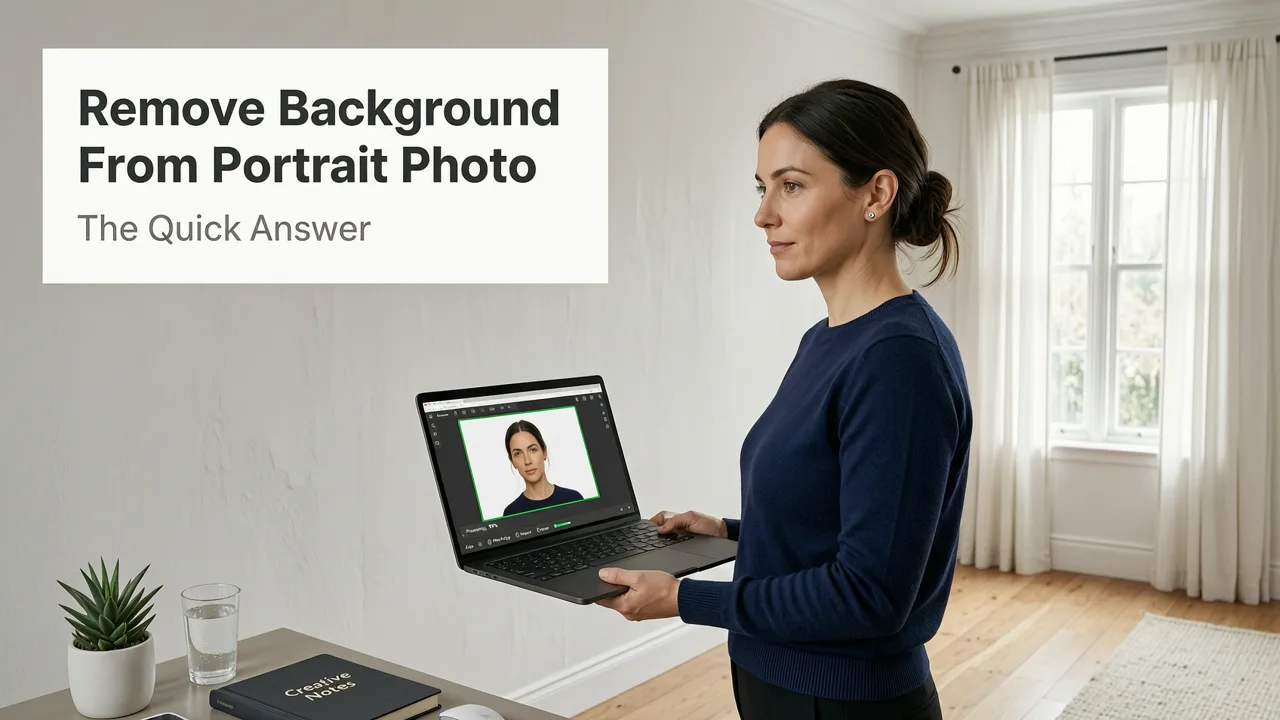
Remove Background From Portrait Photo — The Quick Answer
If you need to remove background from portrait photo quickly and cleanly, the fastest path in 2026 is an AI-powered background remover that detects hair, shoulders, and facial edges in one click. Upload your image, let the model segment the subject, and download a transparent PNG or swap in a new backdrop — no masking, no pen tool, no design experience required.
This guide walks you through exactly how modern AI portrait background removal works, how to get the cleanest edges on difficult subjects like curly or flyaway hair, and when a dedicated tool outperforms general-purpose editors. By the end, you will know how to produce studio-quality cutouts for headshots, ecommerce listings, social media, and marketing assets in under a minute.
What Does It Mean to Remove the Background From a Portrait Photo?
Removing the background from a portrait photo means isolating the subject — typically a person's face, hair, and upper body — from everything behind them. The result is a cutout on a transparent layer that you can place on any new background, color, or design template.
Luminar Neo - How to Remove and Replace a Portrait Background
by Photo Blue
In traditional photo editing, this meant manually tracing paths around the subject with a pen tool, refining edges with complex selection masks, and spending 10 to 30 minutes per image. In 2026, AI segmentation models handle this in seconds by analyzing depth cues, color contrast, and semantic understanding of human anatomy to separate foreground from background with near-perfect accuracy.
Why Portrait Background Removal Is Harder Than Product Shots
Portrait photos present unique challenges that product photos do not:
- Hair detail: Flyaways, curls, and wispy strands are nearly impossible to isolate with manual tools but are a strength of modern segmentation AI.
- Shoulder and neckline transitions: Soft fabric edges and skin-to-clothing gradients confuse older algorithms.
- Similar foreground-background colors: A subject wearing a beige sweater against a beige wall requires the model to understand body shape, not just color contrast.
- Glasses, jewelry, and accessories: Reflective or translucent objects need careful edge handling to avoid halos or missing fragments.
This is why a tool built specifically for portrait segmentation — rather than a generic background eraser — consistently delivers better results.
How AI Removes Backgrounds From Portrait Photos in 2026
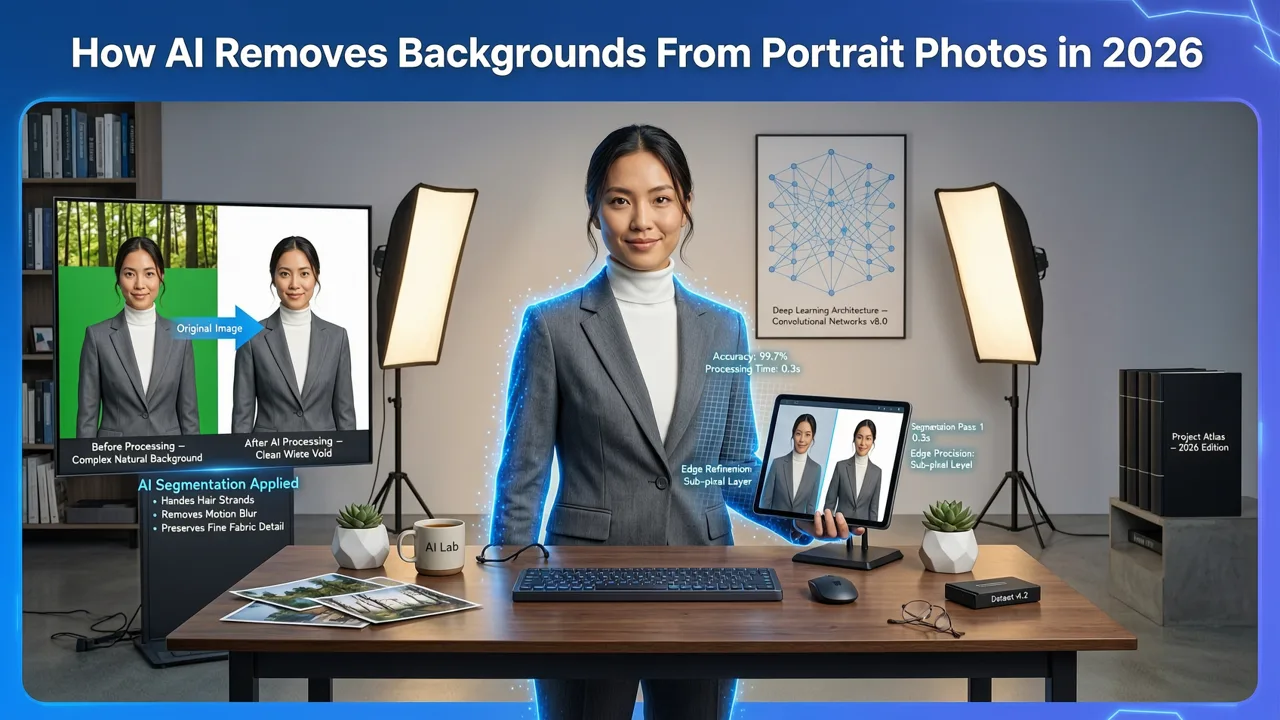
Modern AI background removal relies on deep-learning segmentation models trained on millions of labeled portrait images. Here is what happens under the hood when you upload a photo:
- Subject detection: The model identifies all human figures in the frame and determines which is the primary subject based on size, position, and focus.
- Semantic segmentation: Each pixel is classified as foreground (skin, hair, clothing, accessories) or background (wall, sky, scenery, other people).
- Edge refinement: A secondary pass smooths jagged edges, preserves fine hair strands, and removes color fringing along the cutout boundary.
- Matte generation: The final alpha channel is exported as a transparent PNG, or the subject is composited onto a new background of your choice.
The latest generation of models, informed by research from groups like Google AI's responsible development practices and architectures documented in resources like the OpenAI documentation, can handle challenging lighting, motion blur, and partial occlusions that would have broken earlier tools.
Step-by-Step: How to Remove Background From a Portrait Photo
Here is the exact workflow for removing a background from a portrait using an AI-powered editor like AI Image Editor.
Step 1 — Upload Your Portrait
Drag and drop your image or click to upload. Supported formats include JPG, PNG, WEBP, and HEIC. For best results, start with the highest resolution available — AI models produce cleaner edges when they have more pixel data to work with.
Step 2 — Let the AI Detect and Segment
Within one to three seconds, the AI identifies the subject and generates a preliminary cutout. You will see the original background replaced with a transparency grid or your chosen replacement.
Step 3 — Refine the Edges (If Needed)
Most AI tools produce a clean result on the first pass. If you notice small artifacts — a missed hair strand, a slight halo, or an accidentally removed earring — use the brush refinement tool to paint over the problem area and re-segment just that region.
Step 4 — Choose Your Output
Download the cutout as a transparent PNG, place it on a solid color, apply a blurred background, or drop it into a custom template. Export at full resolution for print or at a compressed size for web and social media.
Best Practices for Clean Portrait Background Removal
Even the best AI produces better results when you follow a few simple guidelines before and after the cutout.
Before You Upload
- Use good lighting: Even, diffused light reduces harsh shadows that can confuse edge detection.
- Maximize contrast between subject and background: A dark jacket against a light wall is easier to segment than a light jacket against a light wall.
- Shoot at higher resolution: More pixels give the model more information to work with, especially around hair and fine details.
- Avoid heavy motion blur: Blurred edges are inherently ambiguous, and even AI can struggle to guess where the subject ends.
After the Cutout
- Check at 100% zoom: Zoom in on hair edges, glasses frames, and jewelry to catch any remaining artifacts.
- Add a subtle shadow or glow: A thin drop shadow helps the cutout feel grounded on a new background, especially for marketing assets.
- Match the lighting direction: If the original photo had light from the left, choose a replacement background with similar lighting for a natural composite.
Portrait Background Removal vs. General Background Removers
Not all background removal tools are equal. Here is how portrait-specific tools compare to general-purpose alternatives.
| Feature | Portrait-Specific AI Tool | General Background Remover |
|---|---|---|
| Hair edge accuracy | Excellent — trained on millions of portraits | Variable — often misses fine strands |
| Processing speed | 1–3 seconds | 2–8 seconds |
| Glasses and jewelry handling | Preserves translucent and reflective objects | May cut through or remove them |
| Batch processing | Built-in for headshot sets | Often limited or add-on |
| Edge refinement brush | Included with semantic awareness | Basic manual brush only |
| Integrated retouching | Combine with skin smoothing and portrait edits | Single-purpose — no retouching |
For headshots, LinkedIn profiles, team pages, and ecommerce model photos, a portrait-optimized tool consistently outperforms generic alternatives. If you are also retouching skin or adjusting facial features, combining background removal with AI Image Editor portrait retouching in a single workflow saves time and keeps results consistent.
Common Use Cases for Portrait Background Removal
Professional Headshots and LinkedIn Profiles
A clean, neutral background makes any headshot look like it was taken in a studio. Remove a cluttered home office or outdoor setting and replace it with a soft gradient or branded color.
Ecommerce and Product Modeling
Online stores require consistent white or lifestyle backgrounds across every model photo. Batch background removal keeps your catalog looking uniform without hiring a retoucher.
Social Media and Content Creation
Creators use portrait cutouts for YouTube thumbnails, Instagram story stickers, podcast cover art, and branded overlays. A transparent PNG gives you maximum design flexibility.
Marketing and Advertising Assets
Place your subject on any campaign background, pair with product shots, or layer into composite designs — all without a single hour in Photoshop.
How to Choose the Right Tool to Remove Background From Portrait Photos
When evaluating background removal tools in 2026, focus on these criteria:
- Edge quality on hair: Test with a photo of someone with curly or wispy hair — this is the true benchmark.
- Speed: Look for sub-three-second processing for single images and batch support for larger projects.
- Output options: Transparent PNG, custom backgrounds, and resolution scaling should all be available.
- Integration with retouching: If you also need skin smoothing or facial adjustments, an all-in-one platform eliminates round-tripping between tools.
- Pricing model: Pay-per-image, subscription, or free tier — choose what matches your volume.
If you are currently paying for a desktop editor subscription primarily for background removal, it is worth exploring the best Adobe background remover alternatives in 2026 to see how much time and money a dedicated AI tool can save.
Combining Background Removal With Other Portrait Edits
Background removal rarely happens in isolation. Most users also want to smooth skin, whiten teeth, adjust lighting, or enhance colors. AI Image Editor's suite includes an AI skin smoothing tool that pairs naturally with background removal — apply retouching first, then remove the background, and export a polished portrait ready for any platform.
This integrated approach is especially valuable for ecommerce sellers and marketing teams who need to produce dozens or hundreds of consistent portraits per week.
Removing Backgrounds Without Expensive Software
One of the biggest shifts in 2026 is that you no longer need Photoshop, Affinity Photo, or any paid desktop software to get professional-quality cutouts. Browser-based AI tools handle the heavy lifting on remote servers, meaning your device does not need to be powerful — just connected to the internet.
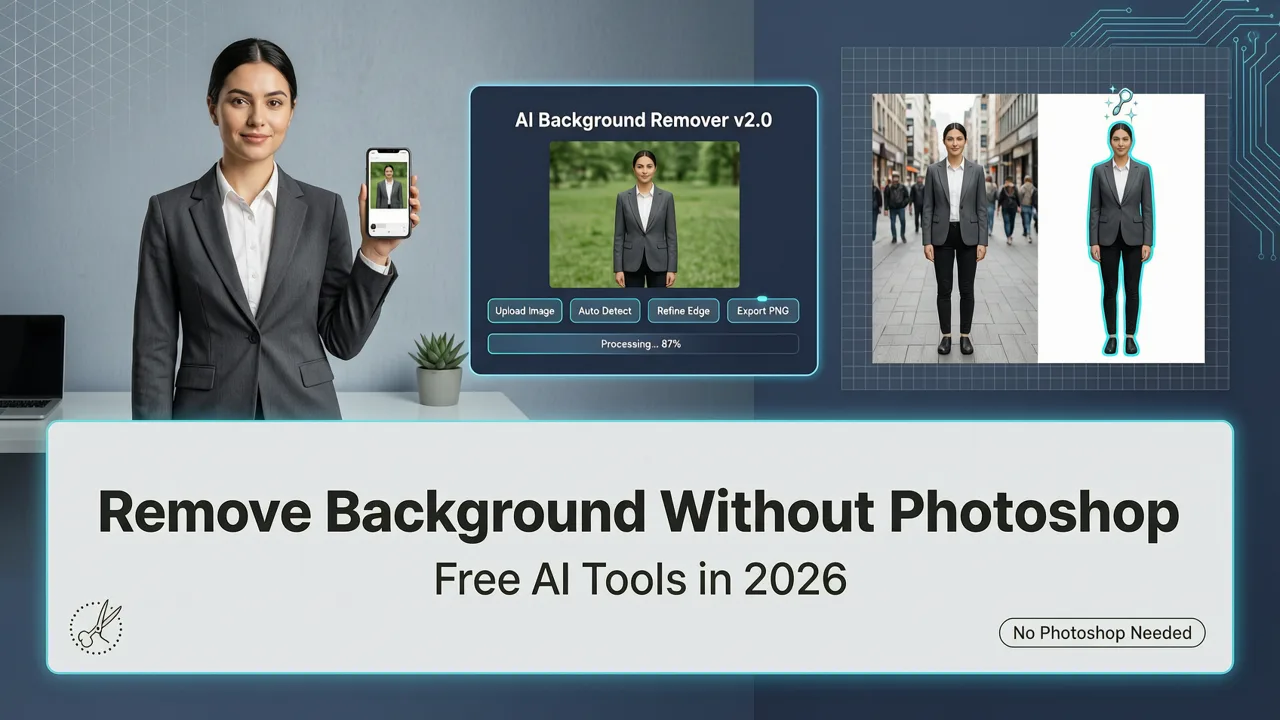
If you want to explore more options beyond portrait-specific tools, check out our guide on how to remove background without Photoshop using free AI tools for a broader overview of what is available this year.
Tips for Difficult Portrait Backgrounds
Some portraits are harder to cut out than others. Here is how to handle the most common problem scenarios.
Busy or Cluttered Backgrounds
AI segmentation models excel here because they understand subject anatomy, not just color boundaries. Even a crowded street or patterned wallpaper will be cleanly separated from the subject.
Similar Foreground and Background Colors
When the subject's clothing matches the background, look for a tool that uses semantic segmentation rather than simple color-threshold detection. The model should recognize the human form regardless of color similarity.
Backlit or Silhouette Portraits
Strong backlighting creates a bright halo around the subject that can bleed into the cutout. Post-processing with a slight inner glow or edge darkening can clean up the result, and some AI tools now include automatic de-haloing as part of their refinement pass.
Group Photos
Most portrait background removers focus on a single subject. For group photos, select a tool that supports multi-subject segmentation or manually select which people to keep before removing the background.
Frequently Asked Questions
Can I remove the background from a portrait photo for free?
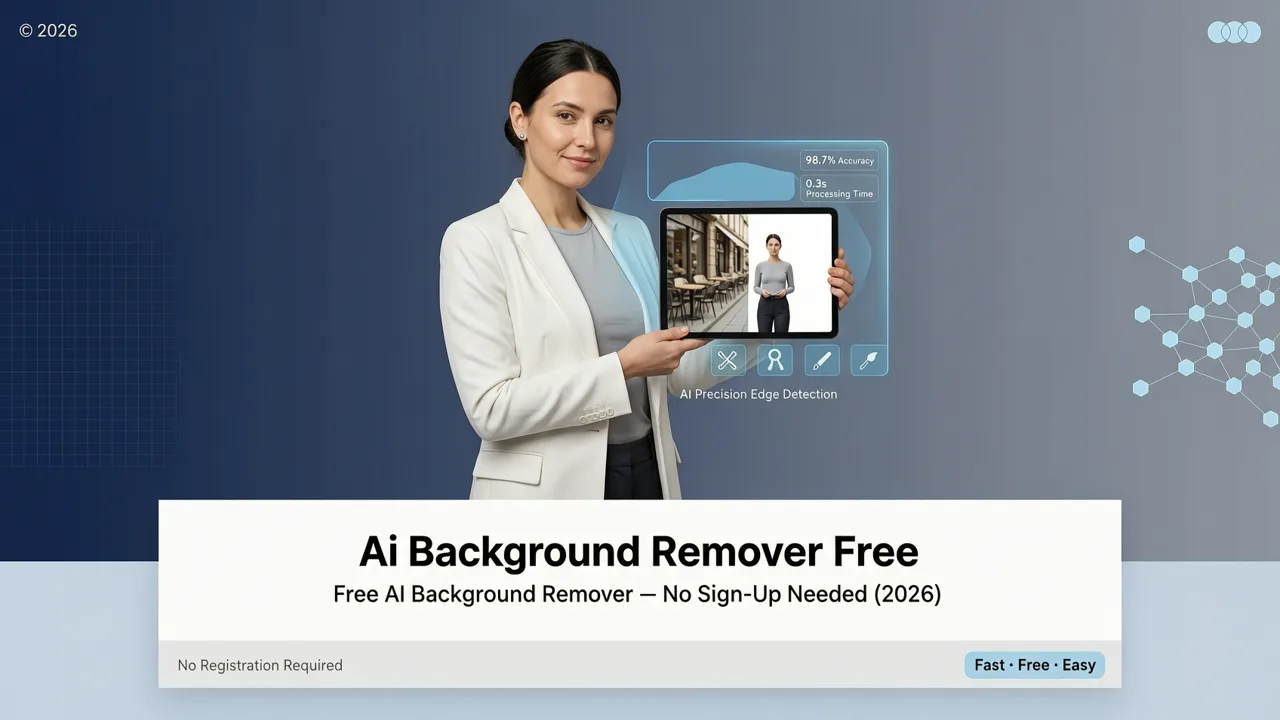
Yes. Many AI-powered tools in 2026 offer free tiers that let you remove backgrounds from a set number of images per month at full resolution. For occasional use, a free tier is usually sufficient. For high-volume work like ecommerce catalogs, a paid plan with batch processing is more efficient.
Will AI background removal work on curly or frizzy hair?
Modern portrait-specific AI models are specifically trained on diverse hair types and handle curly, frizzy, and flyaway hair far better than older tools. For best results, upload a high-resolution image so the model has enough pixel data to detect individual strands.
What file format should I export after removing the background?
Export as a transparent PNG if you need a cutout to place on other designs. Use JPG if you are placing the subject on a solid or pre-designed background and want a smaller file size for web use. For print, export at the original resolution or higher using an AI upscaler.
Is AI background removal accurate enough for professional use?
In 2026, AI background removal is accurate enough for professional headshots, ecommerce, marketing, and social media without manual cleanup in most cases. For extremely demanding print work, a quick manual refinement pass may still be worthwhile, but the gap between AI output and manual retouching has narrowed dramatically.
Start Removing Portrait Backgrounds in Seconds
Removing the background from a portrait photo no longer requires design skills, expensive software, or patience for manual masking. AI-powered tools deliver clean, natural cutouts in seconds — even on difficult subjects with complex hair, accessories, or tricky lighting.
Ready to try it yourself? Upload your first portrait to AI Image Editor and see how fast you can go from a cluttered photo to a polished, studio-quality headshot. Whether you are building a LinkedIn profile, refreshing your ecommerce catalog, or designing marketing assets, clean background removal is the fastest upgrade you can make to your visual content in 2026.