Remove Background from Portrait Photo AI — Fast, Clean & Free
If you need to isolate a person from a busy backdrop in under ten seconds, an AI-powered portrait background remover is the fastest path to a professional result. The process is simple: upload your photo, let the AI detect the subject, and download a transparent PNG ready for social media, e-commerce listings, or design projects. Below, we break down exactly how to remove background from portrait photo AI tools work, what separates a great result from a jagged mess, and how to get the cleanest cutouts without touching Photoshop.
Why Portrait Backgrounds Are Harder Than Product Shots
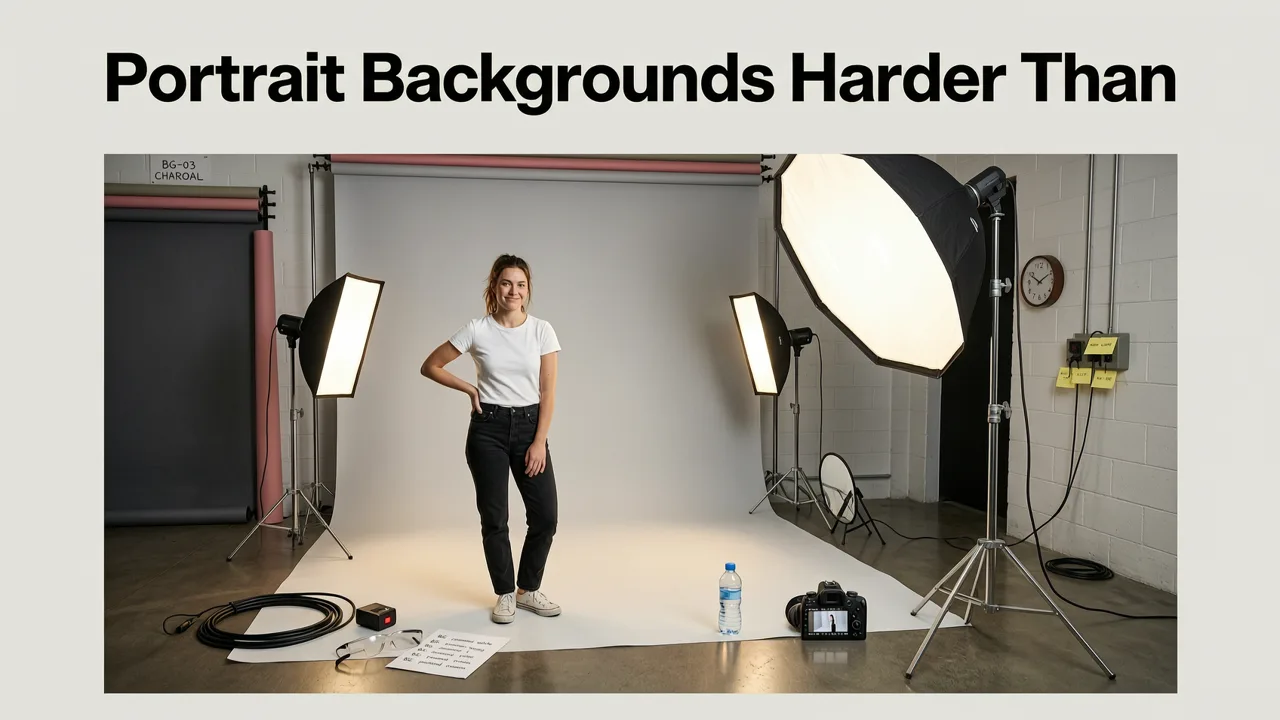
Removing a background from a product photo is already tricky — but portraits introduce a whole new set of challenges. Hair strands, semi-transparent clothing, glasses reflections, and motion blur around the edges all confuse basic segmentation models. A tool built for crisp product edges will often fail on a flowing hairstyle or a sheer scarf.
That is why portrait-specific AI background removers use specialized models trained on millions of human subjects. These models understand the difference between a person's shoulder and the chair behind them, and they preserve fine hair detail that generic tools simply erase.
How to Remove Background from Image with AI (Best Image Background Remover 2024)
by Zenzdesign
Common Edge-Case Problems in Portrait Cutouts
- Fine hair and flyaways — the most common failure point, where tools either chop hair short or leave a halo of background pixels.
- Glasses and jewelry — transparent or reflective objects can be partially erased or cause the AI to include background fragments.
- Similar foreground and background colors — a person wearing a white shirt against a white wall can confuse even advanced models.
- Motion blur — a slightly out-of-focus subject edge makes it harder for the AI to draw a precise line.
How an AI Portrait Background Remover Actually Works
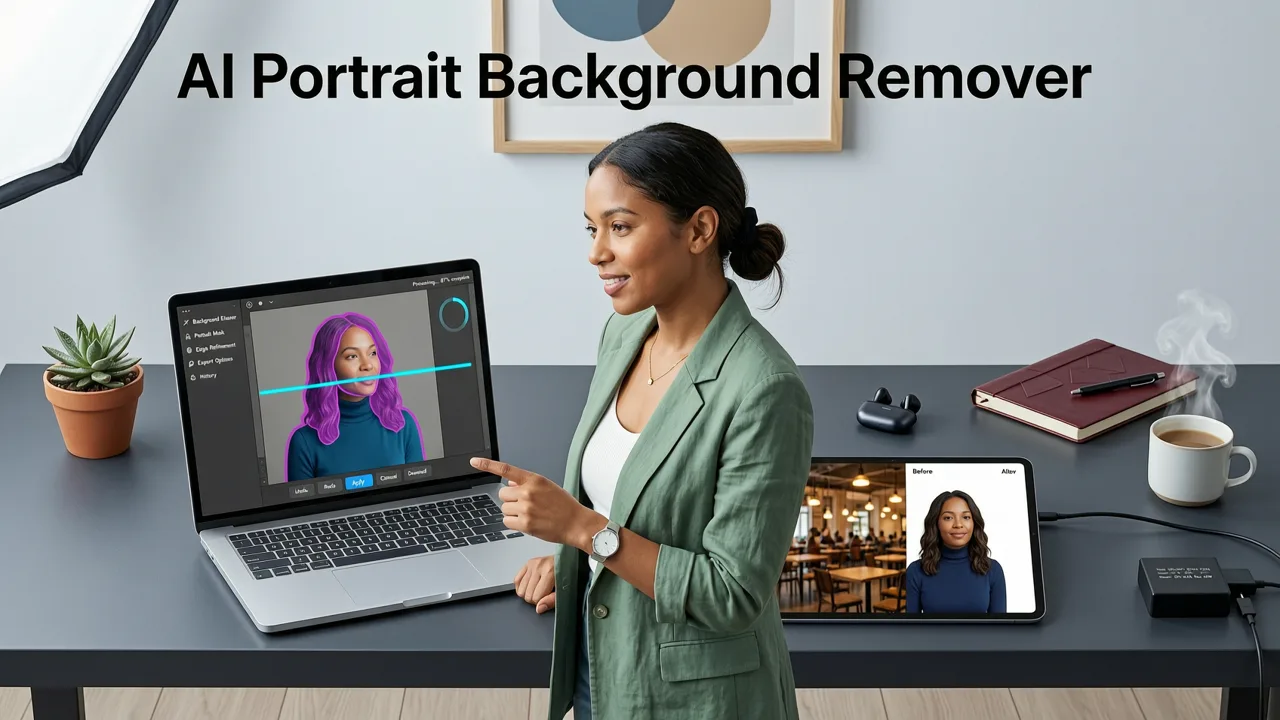
Modern AI background removers rely on deep-learning segmentation models — typically variants of architectures like U-Net, Mask R-CNN, or the newer Segment Anything Model (SAM) family. Here is the simplified pipeline:
- Subject detection — the AI identifies the primary human figure in the frame, including pose estimation to understand body structure.
- Pixel-level segmentation — every pixel is classified as foreground (the person) or background (everything else), with confidence scores for edge pixels.
- Refinement pass — a second model, often trained specifically on hair and transparency, refines the mask around difficult edges.
- Matte generation — the final alpha matte is applied, producing a transparent PNG with smooth, natural edges.
The best tools in 2026 run this entire pipeline in the cloud, meaning your browser does not need any special hardware. You upload, the server processes, and you download — all in a few seconds. For a deeper look at how browser-based AI processing has replaced desktop software, check out our guide on the AI image upscaler online, which uses a similar cloud pipeline architecture.
Step-by-Step: Remove Background from a Portrait Photo
Here is the exact workflow to get a clean portrait cutout using AI Image Editor:
- Upload your portrait photo — drag and drop or click to select. JPG, PNG, HEIC, and WebP are all supported.
- Let the AI process the image — the model detects the subject and generates an initial mask in under three seconds.
- Review the result — zoom in on hair edges, glasses, and any tricky areas. Most tools offer a before/after toggle.
- Make manual adjustments if needed — use the restore or erase brush to fix any spots the AI missed.
- Choose your output — download as a transparent PNG, add a solid color background, or apply a new AI-generated backdrop.
The entire process takes less than a minute, even for high-resolution images. No design skills required, no software to install, and no subscription needed to try it.
Portrait Background Removal vs. General Background Removers
Not all background removers are created equal. Here is how portrait-focused tools compare to general-purpose options:
| Feature | Portrait-Specific AI | General Background Remover |
|---|---|---|
| Hair edge detail | Excellent — specialized refinement model | Often choppy or oversmoothed |
| Glasses & jewelry handling | Preserves transparency and reflections | May erase or distort |
| Processing speed | 2–5 seconds per image | 1–3 seconds per image |
| Batch processing | Available for headshot workflows | Varies by tool |
| Output formats | PNG, JPG, WebP with alpha | PNG, JPG |
| Best use case | Headshots, social profiles, portraits | Products, objects, simple scenes |
If you are working with product imagery instead, our AI background remover for product photos guide covers the tools optimized for that specific workflow.
Use Cases for Portrait Background Removal
Social Media & Personal Branding
A clean headshot on a neutral or branded background looks more professional on LinkedIn, Twitter/X, and company team pages. Removing a distracting background — or replacing it with a gradient, office scene, or brand color — instantly elevates your profile.
E-Commerce & Marketplace Listings
Sellers on Etsy, eBay, and Depop often photograph themselves wearing or holding products. A clean background removal lets you isolate the product or create consistent lifestyle composites without reshooting.
Marketing & Advertising Creatives
Marketers frequently need to place people into campaign layouts, landing pages, or ad banners. A precise portrait cutout with preserved hair detail makes compositing look natural rather than pasted.
Event & Wedding Photography
Photographers can quickly deliver alternate versions of portraits — with clean backgrounds for albums, or creative backdrops for social sharing — without spending hours in post-production.
What to Look for in the Best AI Portrait Background Remover
With dozens of tools available in 2026, here are the features that matter most for portrait work:
- Hair-aware segmentation — the model must specifically handle fine, wispy, and curly hair without creating a hard helmet-like edge.
- Transparency support — glasses, veils, and sheer fabrics need partial opacity preserved in the alpha channel.
- High-resolution output — the tool should handle images up to at least 4K without downscaling or quality loss.
- No watermark on free exports — many "free" tools add watermarks or limit resolution. The best AI background remover free options give you full-quality exports without hidden costs.
- Batch processing — if you need to process dozens of headshots, look for bulk upload and consistent results across the set.
- Privacy and data handling — your photos should be processed securely and not stored permanently without consent.
Tips for Getting the Cleanest Portrait Cutouts
Even the best AI works better with a good source image. Follow these tips before you upload:
- Use good lighting — even, diffused light reduces harsh shadows that can confuse edge detection.
- Ensure contrast between subject and background — a dark-haired person against a dark wall is harder to segment than against a lighter backdrop.
- Shoot at higher resolution — more pixel data gives the AI more information to work with around fine edges.
- Avoid heavy motion blur — a slightly sharp image is better than a beautifully blurred one when it comes to clean cutouts.
- Keep the subject fully in frame — cropped shoulders or partially visible heads can lead to incomplete masks.
If your source photo is low-resolution or old, consider running it through an AI tool to enhance old photos first. Upscaling and sharpening before background removal gives the segmentation model more detail to work with, resulting in significantly cleaner edges.
Privacy & Responsible AI Use
When using any AI image editing tool, it is important to understand how your data is handled. Reputable platforms process images temporarily, delete uploads after a short retention period, and do not use your photos to train models without explicit consent. For broader context on how leading AI organizations approach responsible development, the Google AI responsibility principles offer a useful framework for evaluating any AI service you use.
Always read the privacy policy of the tool you choose, especially when working with personal portraits, children's photos, or client images.
Common Mistakes to Avoid
- Using a tool designed only for products — product background removers often fail on hair and skin tones.
- Skipping the manual review — even the best AI misses occasional spots. A quick zoom-in check saves embarrassment later.
- Ignoring the alpha channel — saving as JPG instead of PNG will fill transparent areas with white, defeating the purpose.
- Over-compressing the source image — heavy JPEG artifacts around edges make segmentation harder and produce rougher cutouts.
Conclusion: Get Clean Portrait Cutouts in Seconds
Removing the background from a portrait photo no longer requires Photoshop skills or expensive software. With a dedicated AI portrait background remover, you can get professional-quality cutouts — complete with preserved hair detail and clean edges — in just a few seconds. Whether you are updating your LinkedIn headshot, preparing e-commerce images, or designing marketing creatives, the right tool makes the process fast, free, and frustration-free.
Ready to try it? Upload your portrait photo to AI Image Editor and see the results instantly. No signup required, no watermark, and no design experience needed.