
Age Up a Portrait
Add wrinkles, grey hair, and natural ageing details whilst keeping the face structure and expression intact.
Upload a portrait, choose a target age or write your own prompt — get a natural-looking result in seconds.
AI Age Filter
AI Age Filter is an online tool for transforming faces across different age groups whilst keeping the portrait looking natural.
AI Age Filter — a web-based AI tool for age transformation and face editing.
Add wrinkles, grey hair, and natural ageing details whilst keeping the face structure and expression intact.
Reverse the ageing process and generate a younger version of any face with smooth, natural results.
The AI preserves skin tone, lighting, and facial structure whilst applying the age transformation.
AI Age Filter
Upload a portrait, choose a target age, or describe the transformation you want. You can also visit the AI Image Editor pricing page for additional credits.AI Image Editor Pricing page.
Age Transformation Features
The tool adjusts age whilst preserving identity, expression, and skin tone.
Add wrinkles, grey hair, and natural ageing details whilst keeping the face structure and expression intact.
See AI image editing use casesReverse the ageing process and generate a younger version of any face with smooth, natural results.
Explore AI image editor featuresThe AI preserves skin tone, lighting, and facial structure whilst applying the age transformation.
Read the AI image upscaler guideChoose from preset age ranges or type a custom age to generate the transformation you have in mind.
Explore more editing featuresAdd optional instructions to control wrinkles, hair colour, skin texture, and other ageing details.
Read the AI background remover guideDownload the result for profile photos, creative projects, social posts, and age progression previews.
Read the AI image upscaler guideBefore & After
See how the tool transforms faces between different age groups whilst keeping the portrait looking natural.
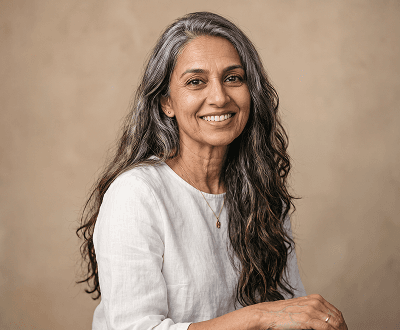
Age Progression
Generate a realistic ageing result for portraits, headshots, and creative projects in seconds.
Explore AI image editing features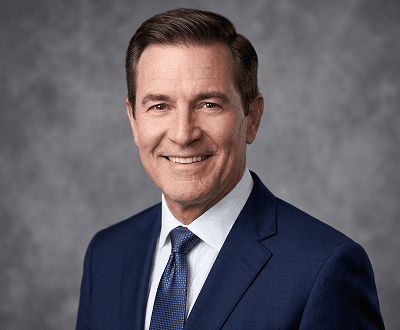
Age Regression
Compare the original portrait with a younger-looking version to explore the transformation.
See portrait editing use cases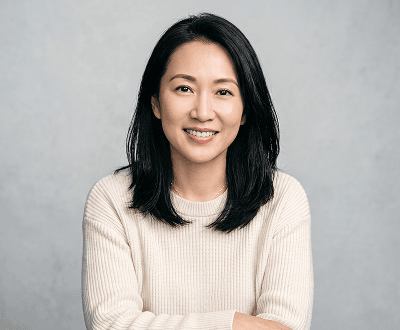
Custom Age Target
Use AI Age Filter to generate a face at any age with natural lighting and skin detail.
Browse AI image editing guidesAge Filter Workflows
This tool is made for fast age progression, age regression, and natural portrait transformations across generations.
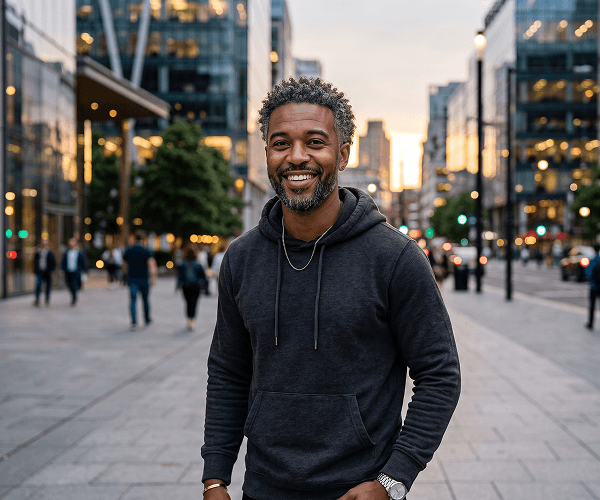
01 / Age Progression
Add wrinkles, grey tones, and natural ageing details whilst keeping the face, expression, and skin texture intact.
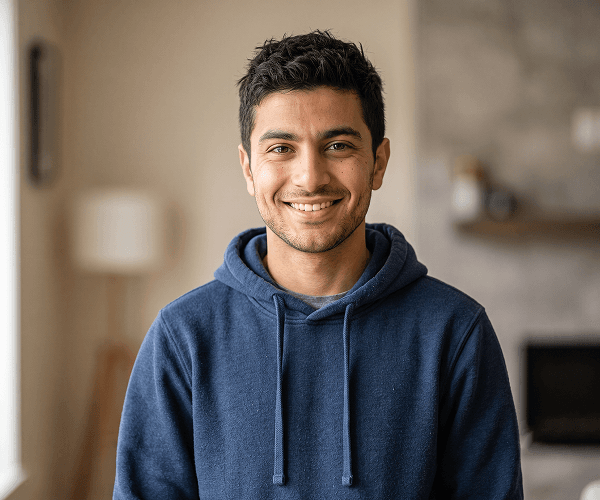
02 / Age Regression
Reverse ageing on portraits for creative projects, social content, and before-and-after comparisons.
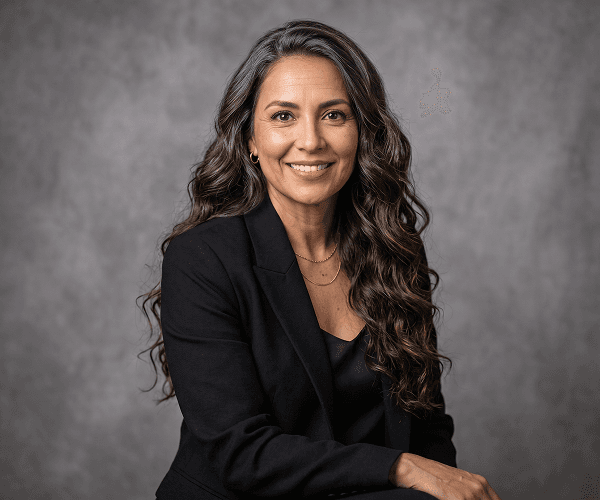
03 / Custom Age Target
Select a target age or write a custom prompt to generate a portrait at any stage of life.
Use Cases
Great for age progression previews, creative portrait edits, family projects, and before-and-after content.
Start Age Filter EditingSee what a face might look like decades into the future with realistic ageing detail.
Learn more about AI Image EditorGenerate a younger-looking version of any portrait for creative or personal projects.
Explore image editing featuresCreate before-and-after age comparisons for family photos and personal storytelling.
See portrait editing use casesCreate engaging age transformation visuals for social content, adverts, and promotional portraits.
Read AI editing guidesHow It Works
Upload a portrait, select a target age or write a prompt, and download the result after the AI renders the age-transformed version.
Pick a photo and upload it to the age filter editor.
Choose a target age from the preset options or describe the transformation using your own prompt.
Review the age-transformed result and save the image when you are satisfied.
Helpful Resources
Need help with age prompts or portrait transformation? These links can help.
Compare age transformation, background removal, object editing, and upscaling.
See credit packs, generation cost, and the best plan for your image volume.
Learn how to keep clean backgrounds when preparing portrait edits.
Understand when upscaling helps portrait quality and how to prepare source photos.
Browse tutorials for portraits, backgrounds, and prompt-based editing.
FAQ
Answers to the most common age transformation questions.
AI Age Filter is an online tool for transforming faces across different age groups whilst keeping the portrait looking natural.
A clear portrait with a visible face works best. Avoid blurry or low-resolution images for the best results.
Yes. You can select a preset age range or write a custom prompt to target a specific age for the transformation.
AI Image Editor supports JPG, PNG, WEBP, and GIF uploads up to 8 MB.
No. You can select a preset age from the options provided, or add a custom prompt for more control over the result.
Yes. Prompts are screened before generation, and prohibited content is blocked per the Acceptable Use Policy.
Start Your Age Filter Preview
Upload a portrait, select a target age or craft a custom prompt, and preview the result before saving.