
Remove objects cleanly—no background loss
Select unwanted objects, people, or distractions. AI fills the gap with a natural background that matches the surrounding context.
Select a region, describe your edit, and AI fills only that area. Remove objects, change backgrounds, fix blemishes—everything else stays untouched. No cropping, no reshooting.
AI-Powered Regional Editing
AI Image Inpainting is a selective photo editing tool that lets you select any region of a photo and replace it with AI-generated content based on a text prompt. Unlike full image editing, only your selected area changes—everything outside stays untouched. Perfect for object removal, background changes, and retouching.
AI Image Inpainting is a web-based tool for region-based photo editing, object removal, background changes, and selective retouching using text prompts and brush selection.
Select unwanted objects, people, or distractions. AI fills the gap with a natural background that matches the surrounding context.
Swap furniture, products, props, or clothing by selecting them and describing the replacement. AI generates realistic substitutes.
Select skin spots, scars, or blemishes and AI cleans them up whilst preserving natural texture and surrounding details.
AI-Powered Regional Editing
Upload your photo, brush-select the area you want to change, write a prompt describing your edit, and click Generate. AI fills only your selection whilst everything else stays perfect. Need more edits? Visit thepricing page for additional credits.
Inpainting Capabilities
Selective editing at its finest. Select exactly what changes, describe the edit, and let AI handle only that region perfectly.
Select unwanted objects, people, or distractions. AI fills the gap with a natural background that matches the surrounding context.
See removal examplesSwap furniture, products, props, or clothing by selecting them and describing the replacement. AI generates realistic substitutes.
Explore all editing toolsSelect skin spots, scars, or blemishes and AI cleans them up whilst preserving natural texture and surrounding details.
Retouching guideSelect part (or all) of a background and replace it with a new scene, texture, or colour whilst your subject stays pixel-perfect.
See background editingCorrect damage, remove watermarks, modify specific regions, or make fine-tuned edits anywhere in a photo with precision.
Learn inpainting techniquesOnly edited regions change. Everything outside your brush selection stays exactly as it was—no unintended alterations.
Understand selective editingReal Results
See how AI Image Inpainting handles selective edits—removing objects, changing backgrounds, and fixing details whilst keeping the rest perfect.
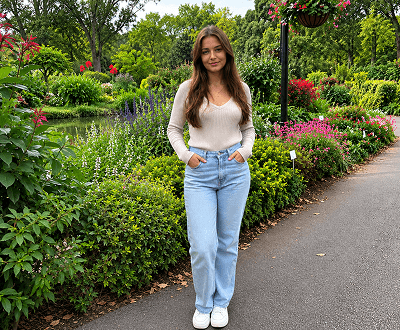
Object Removal
Select a distracting object and AI fills the gap with a natural background. Perfect for cleaning up photo clutter without reshooting.
See removal examples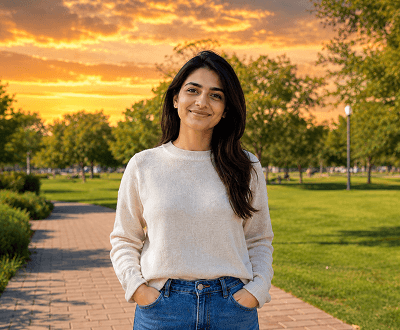
Background Change
Swap a portion of background without touching your subject. AI seamlessly blends the new content with existing details.
Background editing tools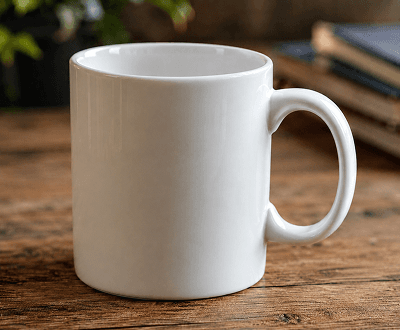
Product Editing
Remove labels, swap surfaces, or clean product backgrounds by selecting just the area that needs changing.
Product editing workflows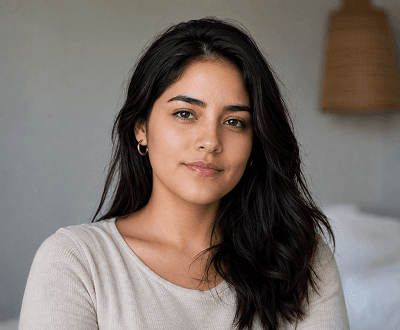
Skin Retouching
Select skin spots or blemishes and AI cleans them up whilst preserving natural texture and surrounding facial details.
Retouching guide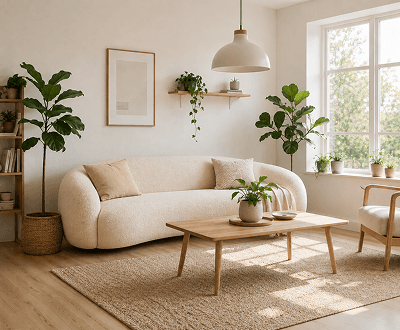
Interior Editing
Swap furniture, fix walls, or change room elements in interior photos. AI maintains perspective and lighting naturally.
Interior editing examples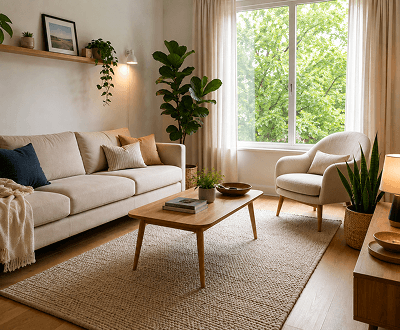
Selective Enhancement
Adjust lighting, colour, or details in a selected area. AI makes changes that feel natural and integrated with the rest of the photo.
Enhancement techniques4-Step Inpainting Workflow
Simple, precise, powerful. Select a region, write your edit, generate, download. Only the area you select changes.
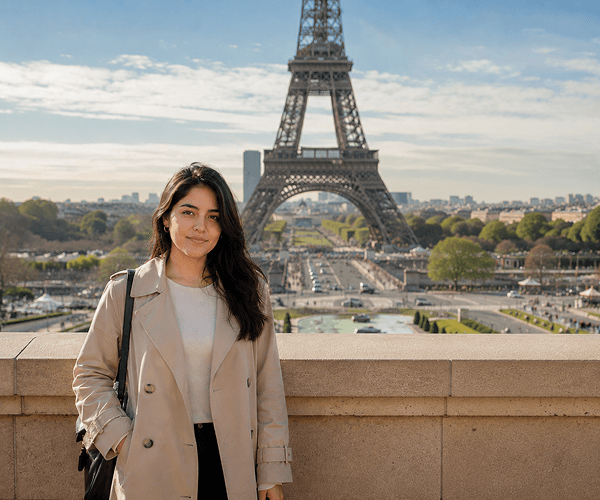
Step 1: Upload
Drop any JPG, PNG, WEBP, or GIF. Works with portraits, products, interiors, landscapes, or any photo needing selective editing.
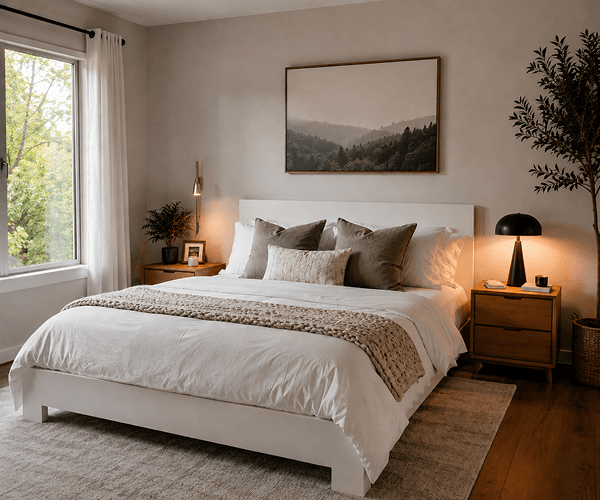
Step 2: Brush Select
Use the brush tool to select exactly what needs to change. Everything outside your selection stays untouched, giving you complete control.
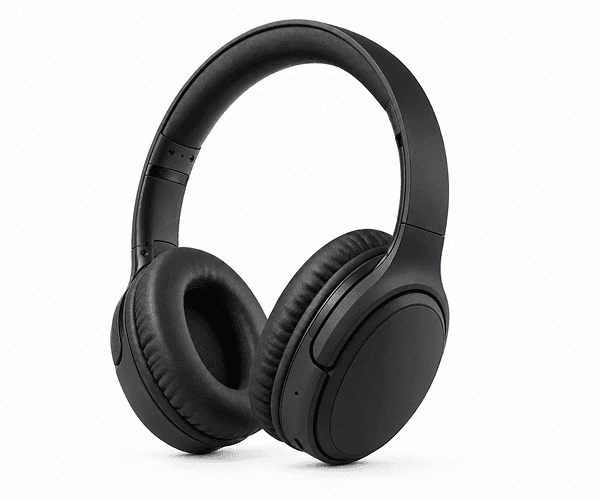
Step 3: Write & Generate
Write a prompt describing what should appear in the selected area. The more specific, the better. Click Generate and AI fills only that region.
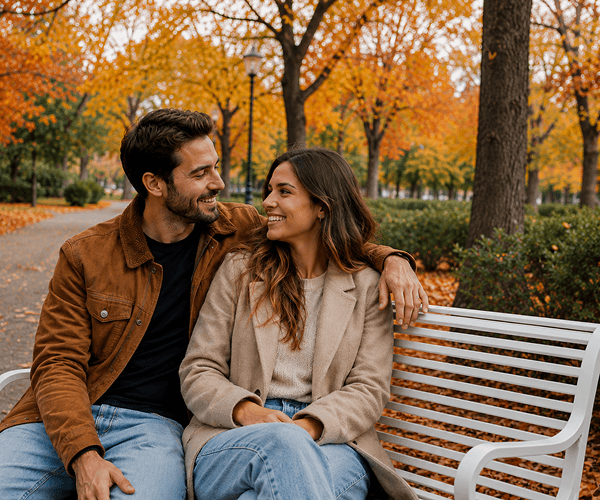
Step 4: Download & Use
Full-resolution download ready for ecommerce, portfolios, social media, or print. Your original + AI edits, all in one clean file.
Real-World Applications
Perfect for teams and creators who need fast, precise photo edits without expensive reshoots or time-consuming manual retouching.
Explore more editing use casesFix product photos, swap backgrounds, remove packaging marks—all without reshooting. Add space, change surfaces, polish for listings.
Product editing examplesRetouch skin blemishes, fix imperfections, and clean up backgrounds whilst preserving natural facial features and expressions.
Beauty editing featuresChange specific elements in posts, remove watermarks, swap backgrounds, and fix content images without full recreation.
Content creation workflowsRemove furniture, fix damaged areas, replace elements in rooms, and enhance property photos for listings and marketing.
Real estate editing toolsSimple 3-Step Process
Upload, select the area, describe your edit. AI fills only what you selected—everything else stays perfectly unchanged.
Drop a JPG, PNG, WEBP, or GIF (up to 8MB). Works with portraits, products, landscapes, interiors—any photo type.
Use the brush tool to paint over exactly what needs editing. Only your selection gets modified—everything else stays intact.
Write a prompt for your selected area. AI fills only that region. Download instantly at full resolution.
Learn More
Master selective editing: tutorials, workflows, and complementary AI photo tools.
Complete tutorial on selection techniques, prompt writing, and workflows for object removal, retouching, and background changes.
Combine inpainting with background removal, upscaling, object editing, and more—all in one powerful platform.
See how photographers, ecommerce teams, and content creators use inpainting for professional photo editing.
View credit packages, pay-as-you-go options, and plans for different volumes and budgets.
Learn when to use full background removal vs. inpainting for maximum editing control.
Discover tutorials for selective editing, retouching, object replacement, and photo enhancement workflows.
Frequently Asked Questions
Everything you need to know about selective photo editing with AI—from techniques to expected results.
AI Image Inpainting is a selective photo editing tool that lets you select any region of a photo and replace it with AI-generated content based on a text prompt. Unlike full image editing, only your selected area changes—everything outside stays untouched. Perfect for object removal, background changes, and retouching.
Use the brush tool in the editor to paint over the region you want to change. The brush is easy to control—you can undo/redo strokes and adjust brush size. Only the painted area is affected by the AI generation.
No. Only the area you select with the brush is edited. Everything outside your selection—background, subjects, surrounding details—stays exactly as it is in the original photo.
Almost anything. You can remove unwanted objects, people, clutter, or distractions. You can replace props, swap furniture, fix clothing, change background sections, or retouch skin blemishes. Write a prompt describing what should be there instead.
The more specific your prompt, the better your results. Instead of 'blue background,' try 'clear blue sky with white clouds.' Instead of 'remove person,' try 'grass and garden.' More detail helps AI understand exactly what you want.
AI Image Inpainting accepts JPG, PNG, WEBP, and GIF files up to 8MB. All formats produce high-quality full-resolution downloads.
New accounts get 15 free signup credits. Each edit/generation uses one credit. You can upgrade to additional credit packs anytime on the pricing page.
Most edits complete in 5-30 seconds depending on image size and server load. You can see a preview before downloading, and regenerate if you want to try different prompts.
Yes. You can regenerate the same selected area with a different prompt, or undo edits and try again. There's no limit to how many times you can refine your result.
Yes. All prompts are screened before generation. Prohibited content is blocked per the Acceptable Use Policy to ensure safe, responsible use of the tool.
Ready to edit?
No credit card needed. Select your area, describe your edit, and let AI handle it. 15 free credits included.